Attik Update - Camera shutter, two-minute video & re-inspection builds (Mobile App)

Summary
Comment photos and other media sync more reliably through the outbox without hitting an artificial queue limit
Camera shutter feedback, two-minute video, annotation loupe, and sharper mid-range iPhone zoom
Custom multiple-choice options in the field, CYA capture from AI Add to Report, and AI Styles & Materials source photos
Shared inspections sync live, rapid option picks are kept during uploads, and Android phones can get push notifications
Black-screen freeze, finish-blocker Styles & Materials, and From this report annotate paths are fixed
Re-inspection builds show finding photos and locations, can start from this job's report, and open subsections still needing outcomes
New Features
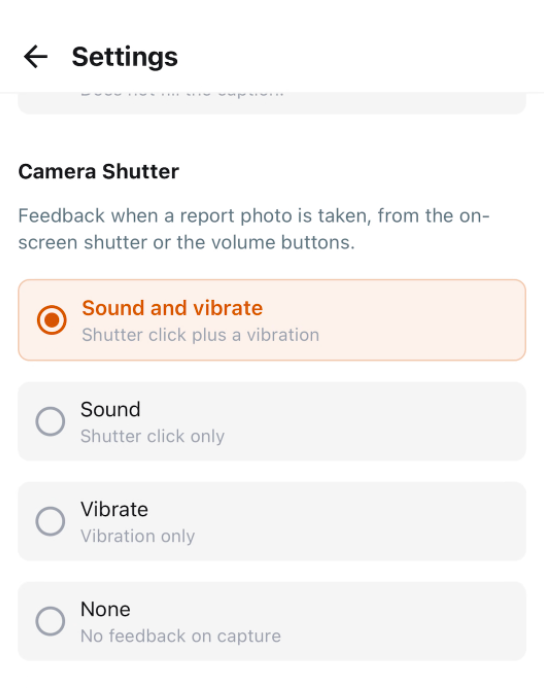
Camera shutter feedback
What changed: Choose whether photo capture uses sound, vibration, both, or neither. The preference applies to on-screen and volume-button capture and persists between sessions. Default is Sound and vibrate.
Where to find it:
Open mobile settings and find Camera Shutter.
Choose Sound and vibrate, Sound, Vibrate, or None.
Take a photo in Report Writer to confirm the feedback.
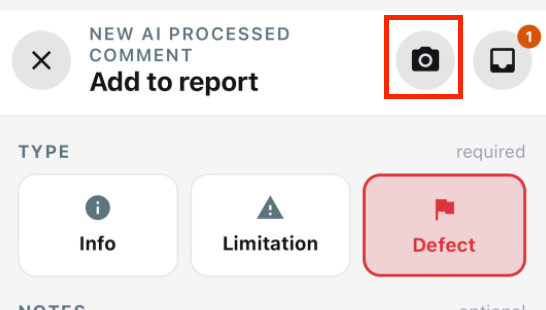
CYA capture from AI Add to Report
What changed: Open CYA photo or video capture from the AI Add to Report screen without leaving the add-to-report flow.
Where to find it:
Open AI Add to Report.
Tap the CYA camera control in the header.
Two-minute video capture
What changed: Record Report Writer videos for up to two minutes. The timer shows elapsed time against the limit, turns amber with a warning in the last ten seconds, and keeps a recording that reaches the limit.
Where to find it:
Open Report Writer → Add media → Video.
Record past one minute and confirm the countdown.
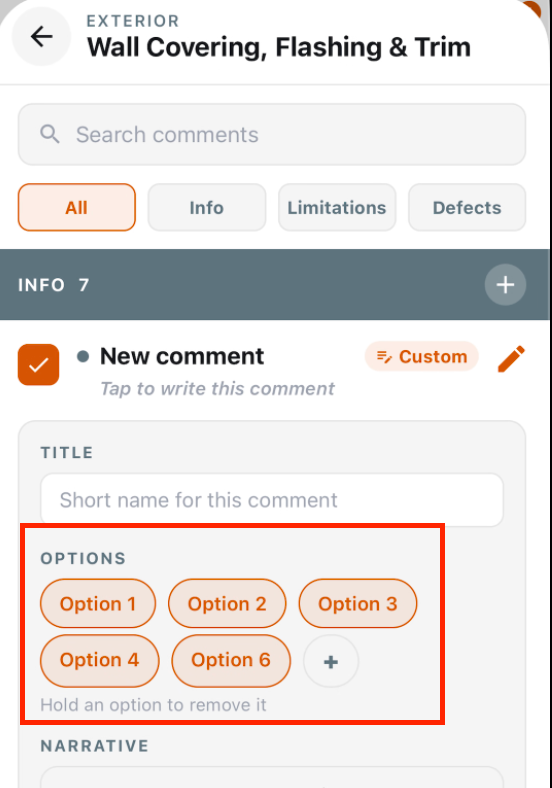
Custom multiple-choice options on field comments
What changed: Create a one-off comment with your own multiple-choice options while working in the field. Choices persist offline, across restarts, and through sync, and do not change the template unless you save the comment to the library.
Where to find it:
In Report Writer, add a new comment.
Add custom option labels, select them, and save.
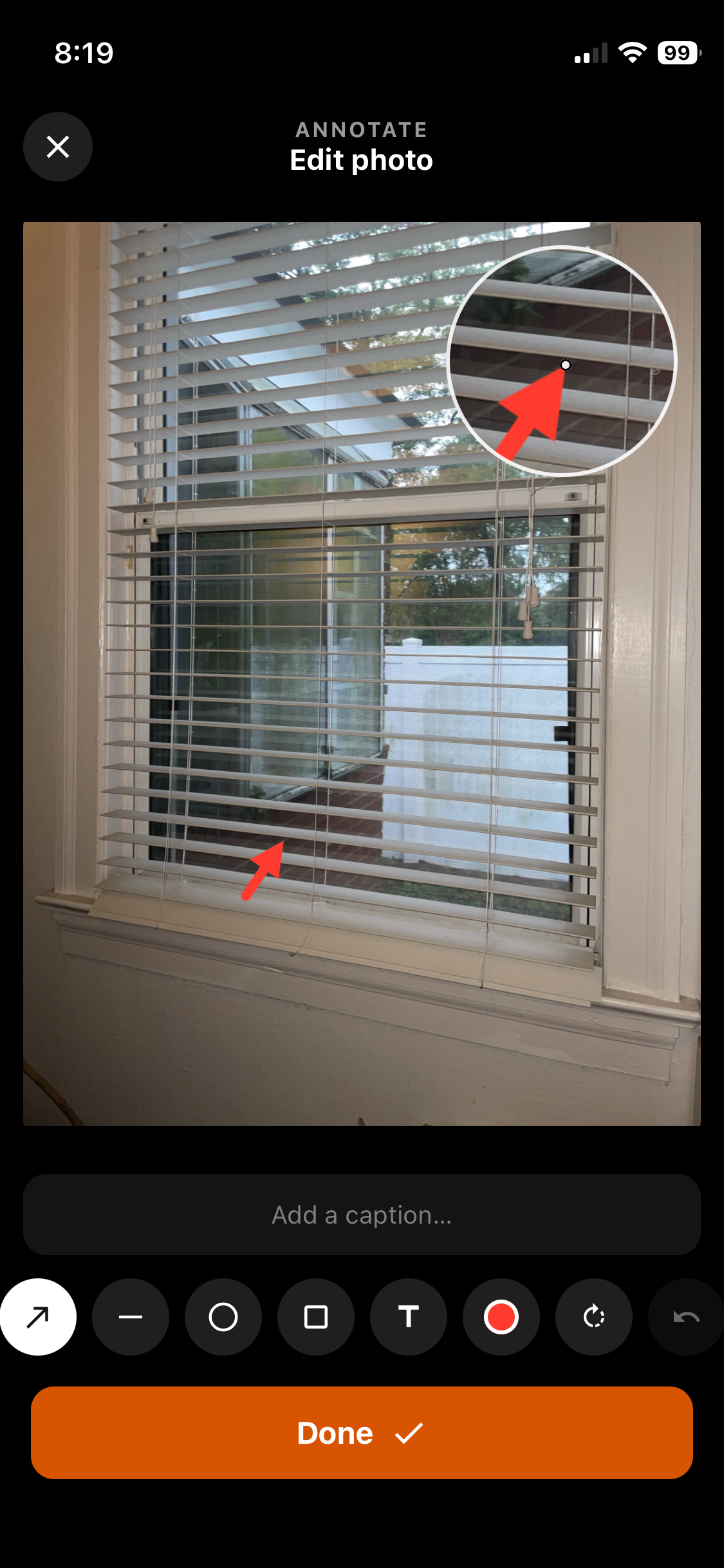
Magnifier loupe while annotating
What changed: While you draw or move an annotation, a round magnifier shows the area under your finger so marks land precisely.
Where to find it:
Open a photo in annotate.
Draw or move a mark and watch the loupe while your finger is down.
Improvements
Comment media sync through the outbox
What changed: Photos and other media attached to comments sync through the offline outbox with a higher practical limit, so large comment batches are less likely to stall or leave media behind.
Where to find it:
Open an inspection report on mobile.
Add comments with multiple photos and let them upload from the queue Outbox.
Sharper mid-range iPhone zoom
What changed: Report Writer camera zoom between about 1.5× and 4.8× on iPhone keeps more detail in the preview and captured photo. Captures are still compressed for upload size.
Where to find it:
Open the Report Writer camera on an iPhone.
Zoom in the mid range and take a photo.
AI Styles & Materials source photos
What changed: When confirming an AI Styles & Materials suggestion, you see the source photos the suggestion used as evidence, including offline local captures.
Where to find it:
Open Styles & Materials and review an AI suggestion.
Confirm using the source photo thumbnails on that screen.
One Location sheet for compose and annotate
What changed: Annotate captions and comment-edit photo captions use the same Location in house sheet as compose, with grouped chips and search instead of horizontal scrolling.
Where to find it:
Annotate a photo or edit a comment photo caption.
Open Location and pick tags from the sheet.
Annotate after attaching From this report
What changed: Attaching photos with From this report opens annotate for that batch under the same Annotate on capture rules as device uploads and the camera.
Where to find it:
On a comment, choose Upload → From this report.
Select photos and confirm annotate opens when the preference is on.
Live sync on shared inspections
What changed: Changes from other inspectors on the same inspection sync without restarting the app. Comment selections merge, media stays attached, and concurrent catalog picks combine instead of overwriting each other.
Where to find it:
Open the same inspection on more than one device.
Make comment or media changes and wait briefly for the other device to refresh.
Rapid option and Styles & Materials picks are kept
What changed: Fast taps on comment options or Styles & Materials while a save is uploading are retained and sent, instead of reverting to older values.
Where to find it:
On a comment or Styles & Materials screen, tap several options quickly while the outbox is uploading.
New comments default to Defect
What changed: New comments open with type already set to Defect. Informational and Limitation stay one tap away.
Where to find it:
Add a new comment in Report Writer and confirm the type starts on Defect.
Same field order on mobile comment editors
What changed: Full edit, quick edit, and summary card edit use the same field order as web and staff view where those fields exist.
Where to find it:
Open a comment on mobile and compare the field order to web.
Push notifications on Android
What changed: Android phones can now get Attik push notifications for mentions, schedule reminders, and short-notice job alerts, the same as iPhone. If you allow notifications for Attik in your phone settings after first declining, the app signs you up the next time you open it.
Where to find it:
Sign in to Attik Mobile on your Android phone and allow notifications when asked.
Open Settings, pick a Schedule Reminder time or Short-Notice Job Alert window, and tap Save.
iPhone payroll receipt photos
What changed: iPhone HEIC receipt photos for payroll adjustments are compressed to JPEG before upload, with the 5 MB limit and allowed types enforced on the server.
Where to find it:
Open a payroll adjustment on mobile.
Attach an iPhone photo as a receipt and save.
ISN chip on imported jobs
What changed: ISN-imported jobs show an ISN chip on the mobile job detail screen instead of the Attik chip.
Where to find it:
Open an ISN-imported job on mobile and check the job-type chip.
Numbered section duplicates increment cleanly
What changed: Duplicating a section or subsection whose name ends in a number bumps that number (for example System 1 becomes System 2) instead of appending another digit.
Where to find it:
In Report Writer, duplicate a numbered section or subsection.
Re-inspection builds show more and finish cleanly
What changed: When building a re-inspection, you can pick a completed report on this same job as well as earlier inspections, and each finding shows its photo and video thumbnails, location, and a narrative snippet. The app waits until the re-inspection is actually built or shows why it failed, and on the re-inspection report, subsections still needing outcomes open automatically with carried findings first.
Where to find it:
Open a job with an Attik report and tap Build from a previous report under Re-Inspection.
Pick a report under This job or Previous inspections here, select findings, and tap Build re-inspection.
Open the new re-inspection report and record an outcome on each carried finding.
⚠ Confirm before publishing: this reaches phones only with the 1.4.0 app store build, not an over-the-air update, and it hasn't been checked on a device yet.
Bug Fixes
App freeze on a black screen
What changed: Fixed an uploader loop that could leave the app unresponsive or stuck on the black launch screen until reinstall.
Where to find it:
No new screen — takes effect after the update.
Applies to: Existing and future records.
Styles & Materials from a finish blocker
What changed: Opening Styles & Materials from Finish Report → Items still needed loads the correct section or shows a retryable error instead of spinning forever.
Where to find it:
Open Finish Report → Items still needed.
Tap a Styles & Materials blocker.
Applies to: Existing and future records.
Comment severity and media after uncheck
What changed: Unchecking then restoring a catalog comment keeps its photos, annotations, locations, and severity. Severity stays visible on checked comments.
Where to find it:
Open a checked catalog comment.
Uncheck and re-check it, then confirm media remains.
Applies to: Existing and future records.
Styles & Materials values with semicolons
What changed: Free-text Styles & Materials values that contain semicolons stay as one chip instead of splitting into incorrect pieces.
Where to find it:
Enter or import a Styles & Materials value that includes a semicolon.
Applies to: Future records only.