Attik Update - Login showcase, faster sessions, EverHome & payroll fixes
Summary
More reliable payroll history and UKG export when multiple payroll actions run at once
Recurring stipends that generate each pay period, mileage broken out by day, and mileage for hourly inspectors
Regular and overtime hours on the payroll run overview, per-charge admin fee overrides, and job details on every payroll adjustment
EverHome settings, eligible services, closing dates, and automatic send when a report completes
Custom worklists load faster with a clearer excluded-jobs drawer and more reliable timeouts
Redesigned login page with weekly inspection cover photos and a clearer slow-server warning
Faster signed-in navigation with improved session handling
New Features
Login page showcase with weekly inspection photos
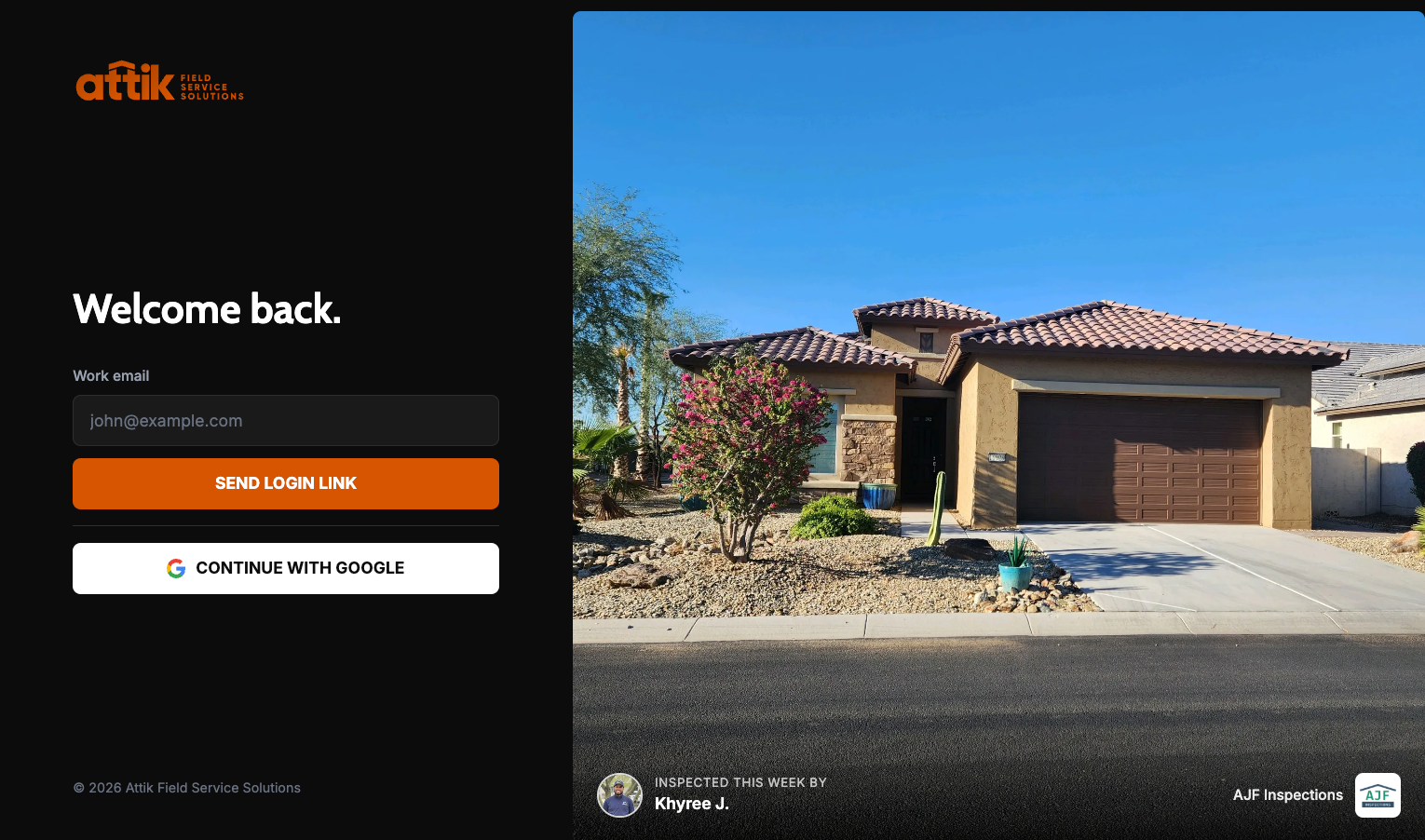
What changed: The sign-in page has a new layout: the login form sits on the left, and a slider on the right rotates through your company’s weekly inspection cover photos so clients and staff see real work from your team.
Where to find it:
Sign out or open the Attik login page in a private window to see the updated layout and photo slider.
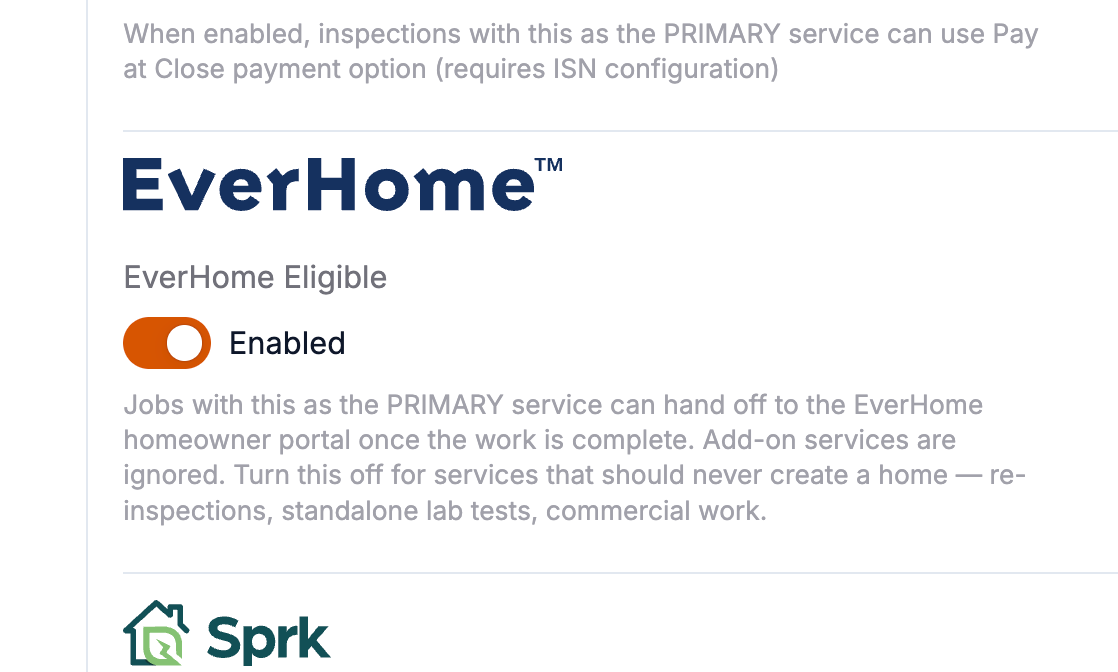
EverHome warranty referral from inspections
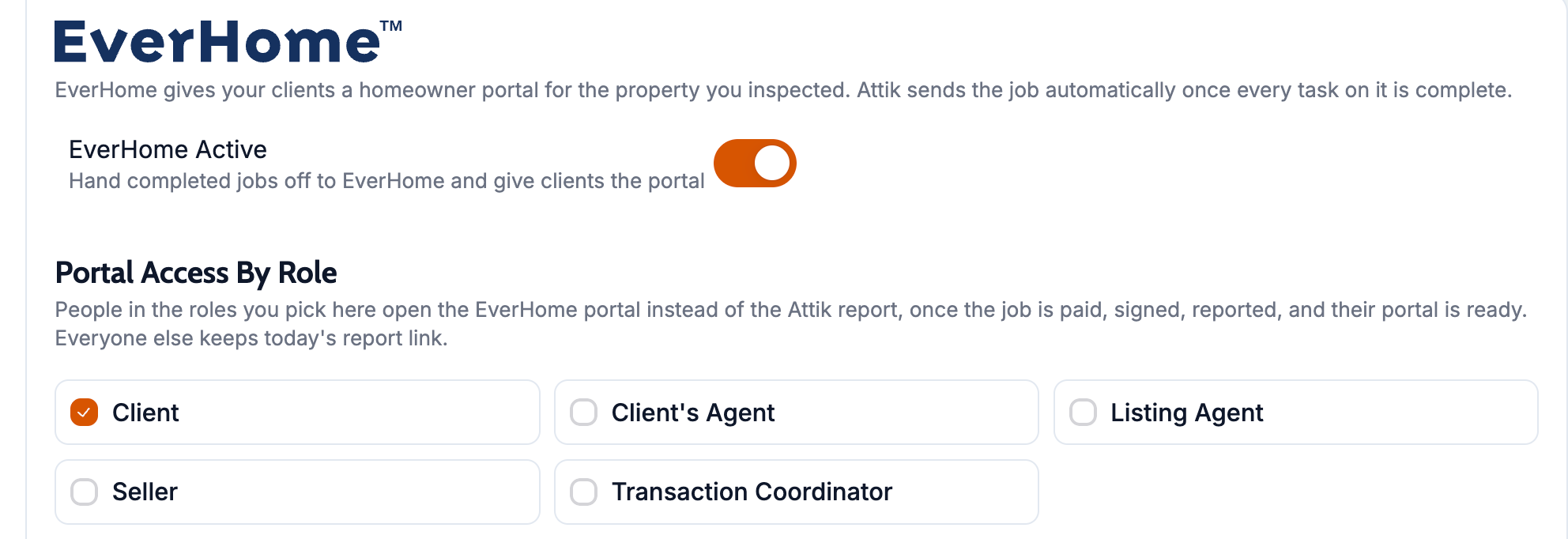
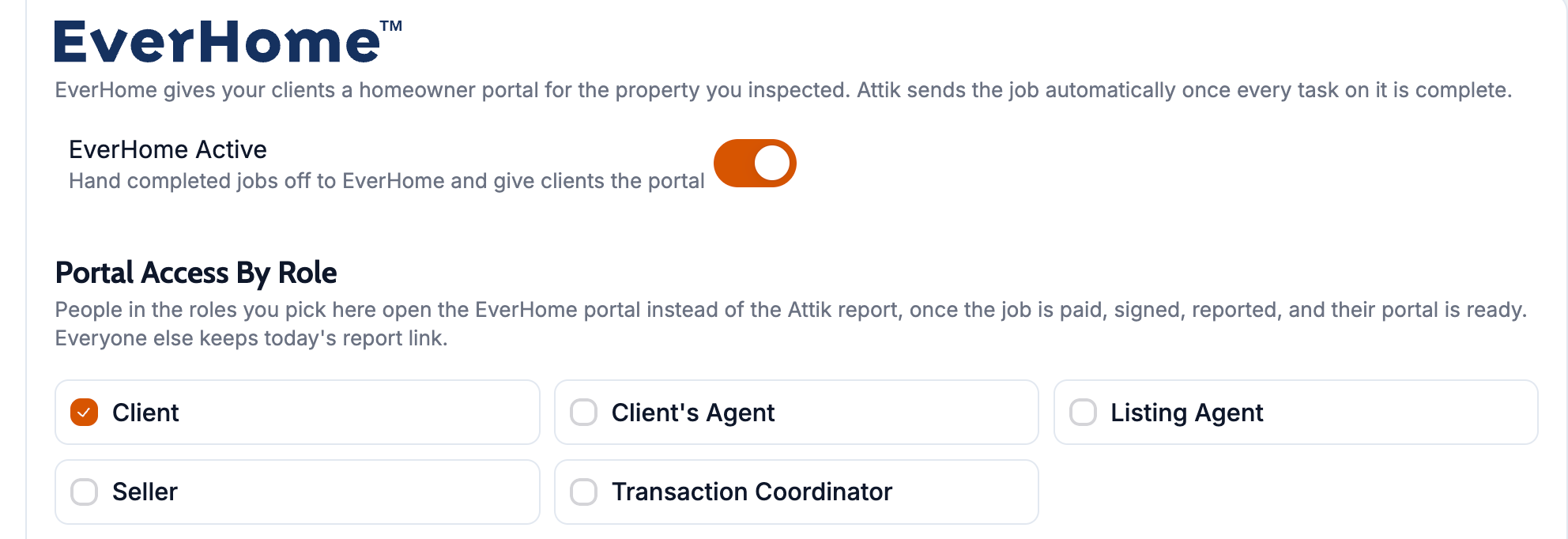
What changed: Companies Attik enables for EverHome can turn the integration on, mark eligible services, collect an optional closing date at scheduling, and send inspection data to EverHome when a report completes. Eligible client roles can be sent to the EverHome portal instead of the standard client portal.
Where to find it:
Open Settings → EverHome to review eligibility and turn EverHome on.
Open Settings → Services and use EverHome Eligible on services that should qualify.
On a work order, open Integrations for EverHome status or to force a push.
During online scheduling, use the optional closing date field when it is shown.
Setup:
Attik must mark your company eligible for EverHome before the settings page appears.
Turn EverHome on under Settings → EverHome and configure eligible services.
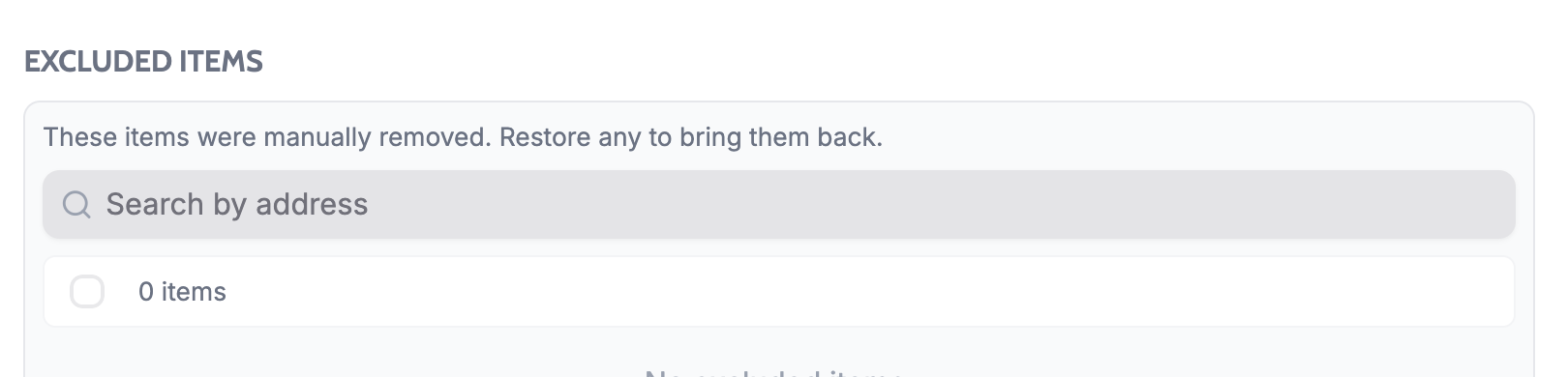
Worklist excluded jobs drawer: search, pages, and batch restore
What changed: When you manage jobs hidden from a custom worklist, you can search by address or name, move through pages of results, select multiple jobs, and restore them in one action.
Where to find it:
Open Worklists and select a custom worklist.
Open the worklist options that show excluded or hidden jobs (the excluded-items view in the worklist drawer).
Use search and pagination at the top of that list; use checkboxes and batch restore when bringing jobs back.
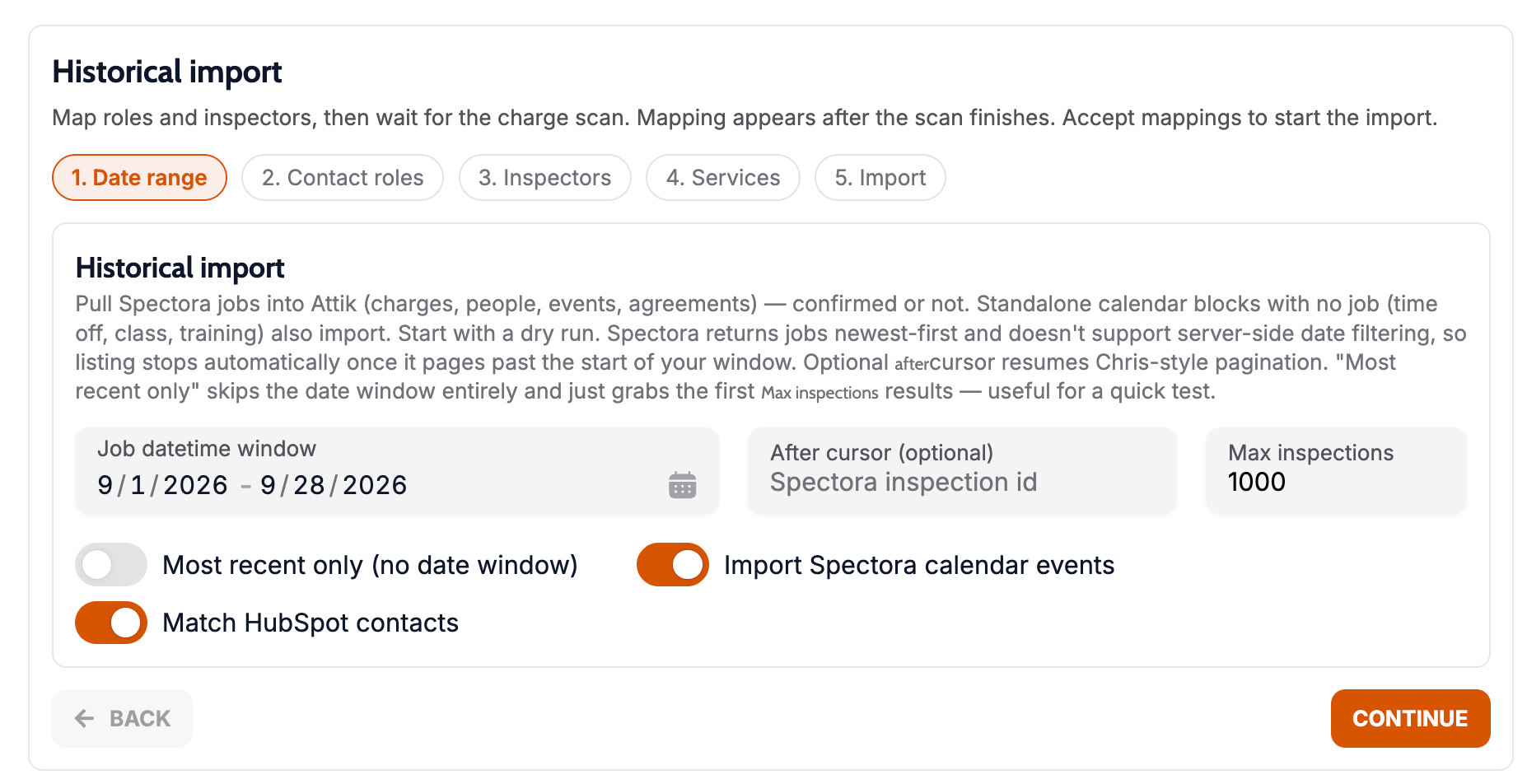
Spectora historical import
What changed: You can import historical Spectora agreements, reports, payments, and refunds into Attik, with settings and a mapping wizard to line up legacy services and notes before data lands in Attik.
Where to find it:
Open Settings → Integrations → Spectora historical import (or the historical import area shown for your Spectora connection).
Follow the mapping wizard for services and review leftover or unmapped items before running an import.
Setup:
Connect Spectora and complete credential setup under Settings → Integrations.
Assign permissions for historical import to the staff who will run migrations.
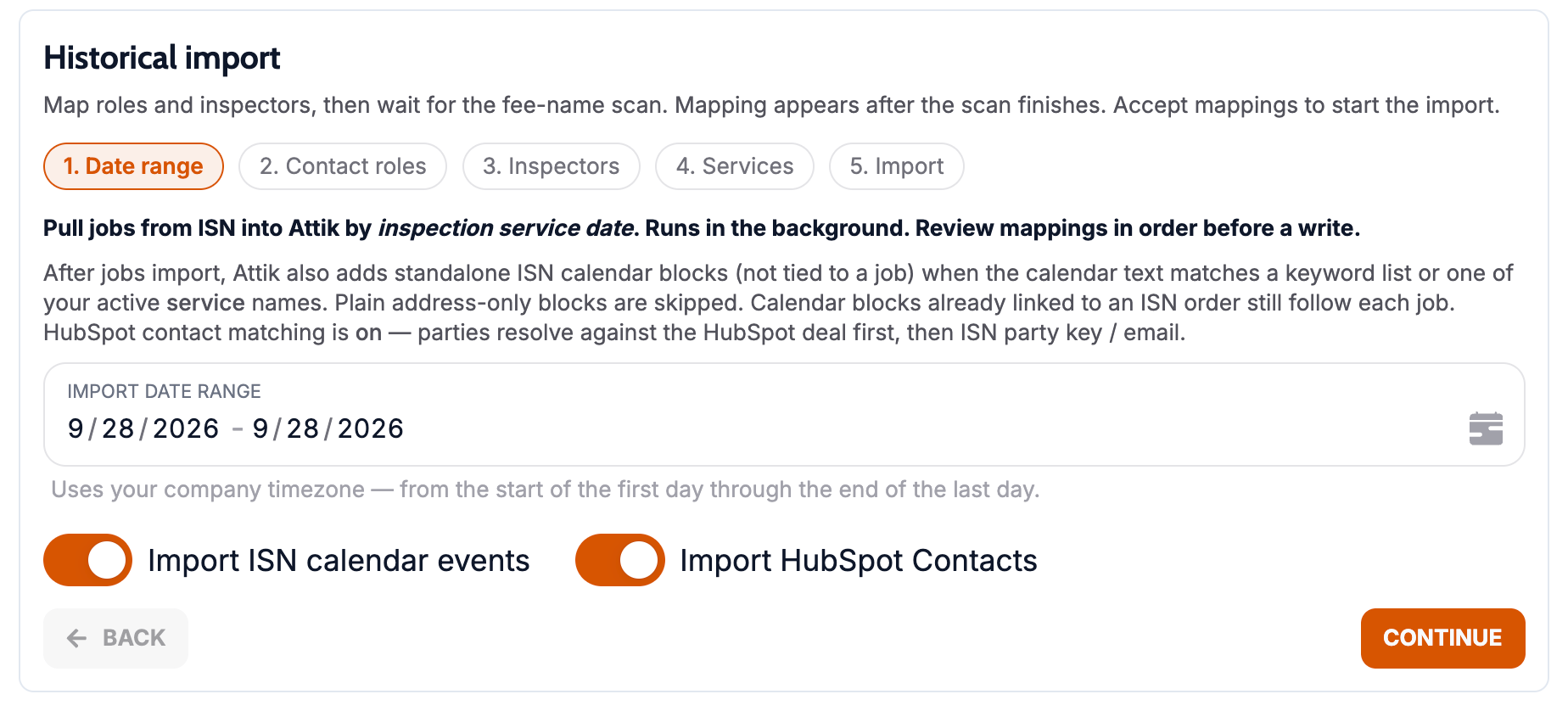
ISN historical import and service mapping
What changed: ISN historical orders import with stronger reconciliation, saved service mappings, and fees mapped to “None” imported as inactive services so they do not create stray active services.
Where to find it:
Open Settings → Integrations → ISN and use the historical import and mapping tools your admin configured.
Review imported services under Settings → Services if you need to activate or adjust inactive rows.
Setup:
ISN credentials and historical import must be configured by an admin before imports run.
Official forms linked to their parent report
What changed: Official forms now behave as real reports tied to the parent inspection report, so they stay grouped with the job instead of floating as separate one-off documents.
Where to find it:
Open the inspection’s Reports area and open an official form from the same job as its parent report.
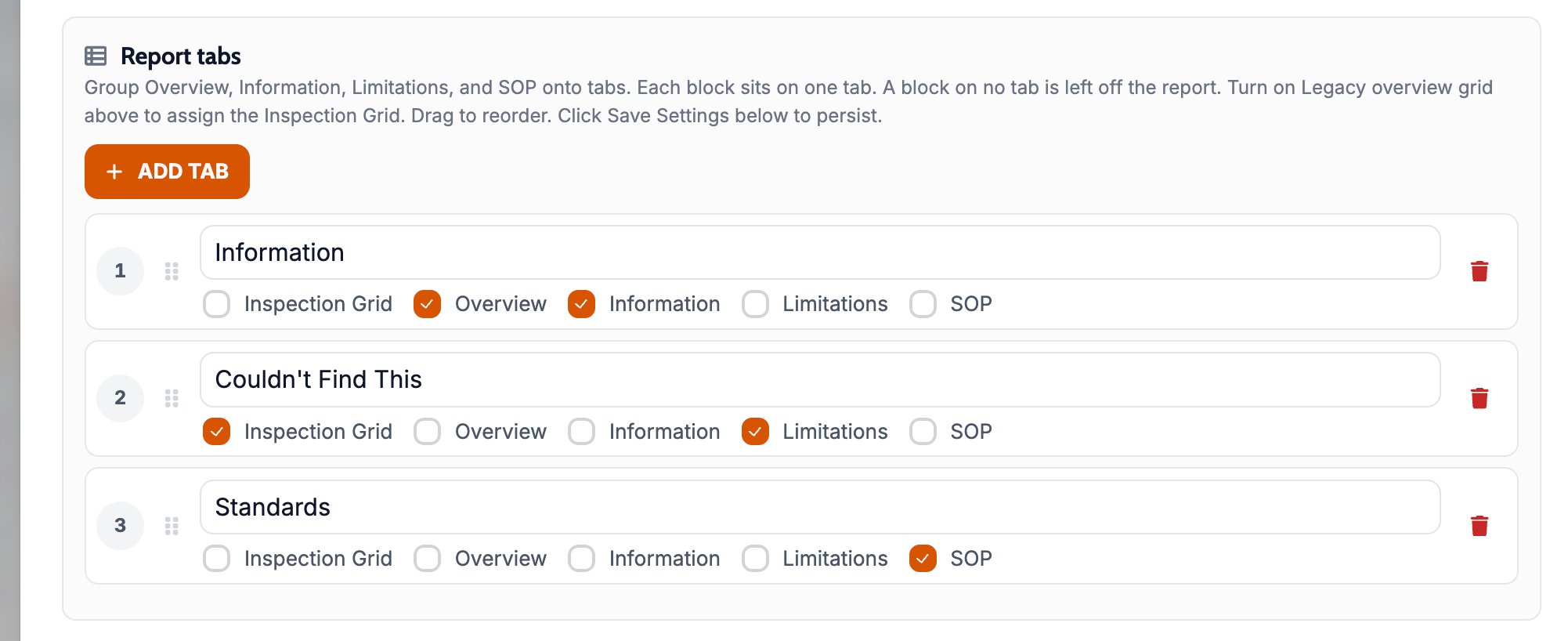
Custom legacy report tabs
What changed: You can define which legacy report tabs appear in the client experience instead of being limited to a fixed default set.
Where to find it:
Open Settings → Reports (or your company’s legacy report settings) and configure the legacy report tabs shown to clients in the settings the a specific report template.
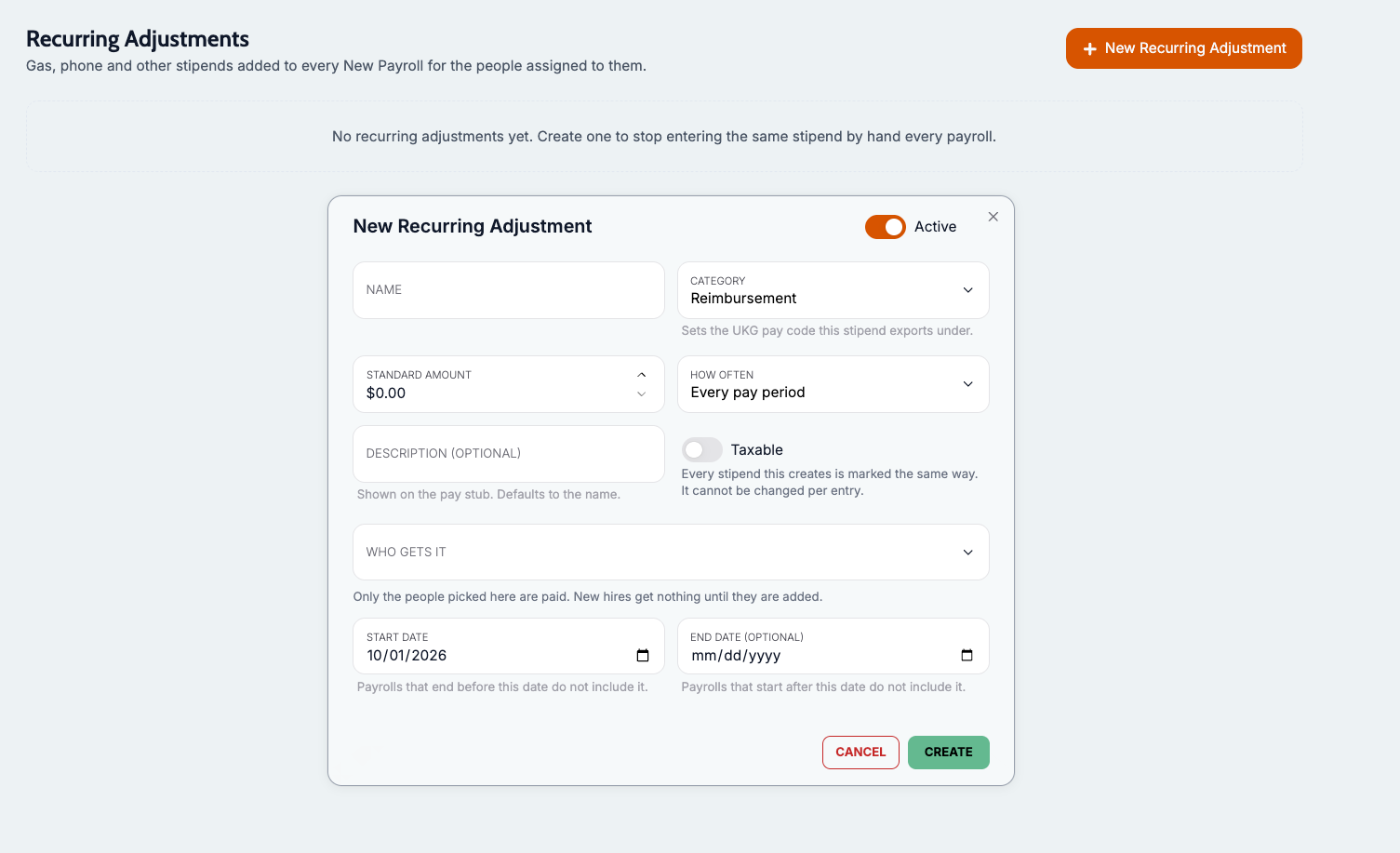
Recurring stipends generate automatically each pay period
What changed: Gas, phone, and other recurring stipends are set up once and generate themselves every pay period for the inspectors who qualify. Each stipend carries its own taxable or non-taxable setting, and generated entries appear as separate line items on the inspector’s Attik pay stub. One-off adjustments work as before.
Where to find it:
Open HR → Payroll → settings to create a recurring stipend with a name, a standard amount, and a taxable setting.
Open an inspector’s profile and select the stipends they qualify for.
Setup:
Assign stipends inspector by inspector. Inspectors with nothing selected, including new hires, receive nothing until assigned.
Optionally enter an amount on the inspector’s profile (for example a part-time rate). Leave it blank to use the standard amount.
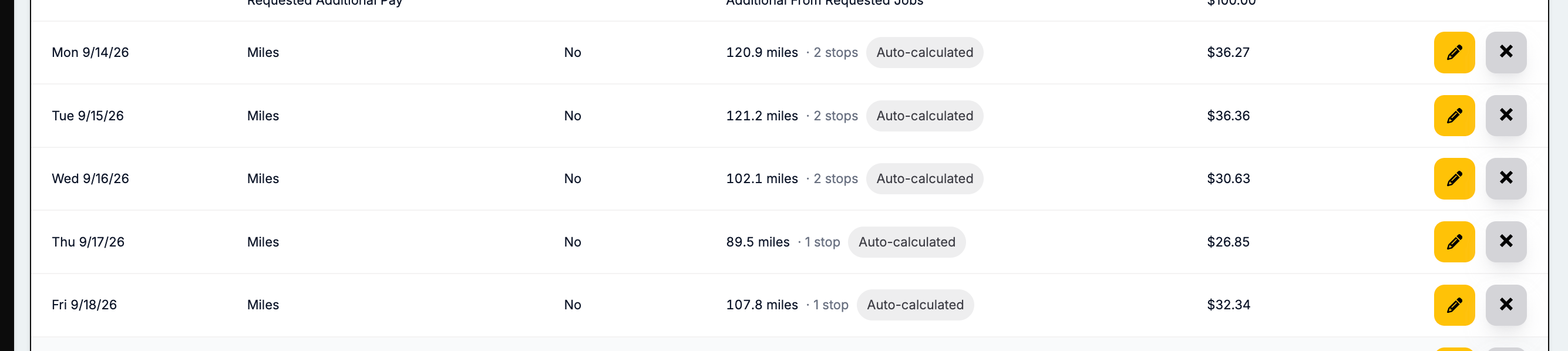
Mileage shown and adjusted by day
What changed: Payroll mileage is broken out by day, with the number of stops each day, instead of one weekly total. You can adjust a single day’s mileage, and each inspector’s breakdown shows a total equal to the sum of the days. Day entries can be edited or deleted until the payroll run is saved, then they lock.
Where to find it:
Open HR → Payroll and open a pay run.
Open an inspector’s breakdown to see mileage by day.
Mileage for hourly and non-commission inspectors
What changed: Attik now calculates mileage for every inspector with field jobs in the pay period, whatever their pay plan, so hourly inspectors no longer need TripLog or manual logging. Office jobs are still excluded.
Where to find it:
Open HR → Payroll and open a pay run that includes hourly inspectors; their calculated miles appear the same way commission inspectors’ do.
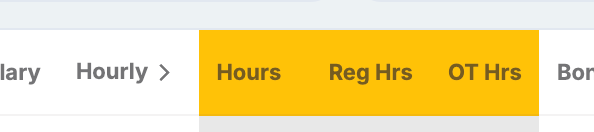
Hours and overtime on the payroll run overview
What changed: The payroll run overview shows total hours worked for every employee next to hourly pay, split into regular and overtime hours. The figures match each inspector’s individual sheet, so reviewers can check hours from the same screen they approve from.
Where to find it:
Open HR → Payroll and open a pay run overview.
Admin fee override on individual inspections
What changed: Before payroll is confirmed, you can override the admin fee on a single inspection’s charge line without changing the service’s default. Attik records the original value, the new value, who changed it, and when.
Where to find it:
Open HR → Payroll and open a pay run review.
Edit the admin fee on the charge line you need to correct.
Setup:
Only users with payroll management permissions (the same users who can confirm payroll) can override admin fees.
Improvements
Login warning when Attik is slow or unavailable
What changed: If the server is responding slowly or is down, the login page shows a clear warning instead of leaving you guessing whether your password failed.
Where to find it: Attik login page when connectivity or server health is degraded.
Faster pages after you sign in
What changed: Signed-in API requests reuse a cached session and shared session context, so everyday navigation feels snappier. Company and permission changes apply on your next request without a full sign-out.
Where to find it: Any signed-in tools page after you log in; no new screen.
Faster custom worklists under heavy filters
What changed: Worklists that join related data (for example service-based filters) now load a single page of jobs before doing heavy joins, so large companies see responsive lists instead of multi-minute waits.
Where to find it: Open any custom worklist under Work; no new screen — lists should load normally after the update.
One-year lookback when a worklist has no date limit
What changed: If a custom worklist does not limit by date, it now shows jobs from roughly the last year plus any upcoming jobs. A short note appears under the worklist title when this lookback applies.
Where to find it: Open Work and the affected custom worklist; read the note under the list title.
Exclude and restore without reloading all worklists
What changed: Hiding a job from a list, restoring it, or batch-hiding several jobs updates the row immediately without refreshing every worklist on the Work page.
Where to find it: Work → any worklist → exclude or restore actions on a job row, or batch exclude in select mode.
Job details on payroll adjustment approvals
What changed: Each adjustment row shows the property address next to the description. Expand a row to see property details, contacts, charges and payments, required info, notes, and the activity feed, or use the link to open the work order in a new tab. Rows with no linked job don’t show these controls.
Where to find it:
Open HR → Payroll → Adjustments and review the approval list.
Job lookup on web Add Adjustment
What changed: Adjustments created on the web can now be linked to a job by searching its order number, with the property address shown for context. A job is required unless you choose a no-job reason: Recurring stipend, Equipment or supplies, Mileage not tied to a single job, Training or meeting time, Bonus or incentive, Payroll correction, Multiple jobs, or Other (an explanation is required for Other). Approvers see the job or the reason on the adjustment list. The mobile app is unchanged.
Where to find it:
Open HR → Payroll → Adjustments and select Add Adjustment.
Search for the job by order number, or choose a no-job reason.
Thumbtack attribution on repair referrals
What changed: Repair-list referrals through Thumbtack carry clearer attribution so you can see Thumbtack-sourced pros in the repair workflow.
Where to find it:
Open the client Repair list or internal repair referral flow where Thumbtack pros are offered.
Bug Fixes
Payroll history and UKG send when several payroll actions run at once
What changed: When several payroll actions ran at the same time, as on payday, the payroll history page could show $0 right after saving, Send to UKG could report no values, and a payroll sent to UKG might not be marked as sent, causing errors on resend. Payroll actions now stay separate, so totals and the UKG sent status save correctly.
Where to find it:
Open HR → Payroll and save, review, or send to UKG as usual.
Applies to: Future pay runs and UKG sends after the update.
Shared default report attachments stay on the job
What changed: Deleting attachments on one job no longer removes shared default report files that other jobs still need.
Where to find it: Inspection Reports attachment management on jobs that share default report templates.
Applies to: Future deletes; shared files that were removed incorrectly may need to be re-uploaded once.
QwikFix repair referrals use correct state codes
What changed: QwikFix referrals send the proper USPS state code so addresses validate correctly.
Where to find it: Repair list or QwikFix referral flow when submitting a property address.
Applies to: Future referrals after the update.
Client portal hides unpublished reports
What changed: Clients no longer see inspection reports that are not published yet.
Where to find it:
Client portal Reports for a job — only published reports should appear.
Applies to: Existing and future records — unpublished reports disappear from the portal view after the update.
Client portal overview when a job has no charges
What changed: The client portal overview no longer crashes when a job has no charges.
Where to find it:
Client portal job overview for jobs without charge lines.
Applies to: Existing and future records.
Repair list emails stay out of non-production environments
What changed: Repair-list messages are not sent to real clients from non-production environments.
Where to find it: No new screen — behavior change in staging and other non-prod hosts.
Applies to: Future actions only in non-production environments.
ISN import keeps going when one contact fails
What changed: A bad contact on one ISN order no longer stops the rest of the order from importing, and fully discounted zero-dollar orders import cleanly.
Where to find it: Historical or live ISN imports run from Settings → Integrations → ISN.
Applies to: Future imports and re-runs after the update.
Quote expanded fees on unexpanded areas
What changed: Quotes no longer show stray expanded fees on areas that are not expanded in the quote editor.
Where to find it:
Open a Quote with optional area expansion and review fees.
Applies to: Existing and future records when the quote is opened or recalculated.
Bounce notification links open the right inspection
What changed: Email bounce notifications link to the correct inspection detail page.
Where to find it: Bounce notification emails — use the inspection link in the message.
Applies to: Future bounce notifications.
Sprk Pro re-syncs when the inspector changes
What changed: Sprk Pro integration updates when a different inspector is assigned to the job.
Where to find it: No new screen — reassign an inspector on a Sprk Pro–connected job and confirm the integration refreshes.
Applies to: Future assignment changes after the update.
Worklist timeouts instead of long hangs
What changed: If a worklist query takes too long, you see a clear error instead of the page staying stuck while the system holds connections open.
Where to find it: Work → open a worklist that previously hung; you should get a timeout message if a query exceeds the limit.
Applies to: Existing and future records — the limit applies each time the list is loaded.
Job lists no longer fail on invalid inspector links
What changed: Worklists and job rows no longer crash when a job points at a broken or placeholder inspector id.
Where to find it: Work and other job lists that show inspector names; lists should load even when some jobs have bad inspector data.
Applies to: Existing and future records — lists that previously returned an error should load after the update.
More efficient excluded-job filtering
What changed: Custom worklists apply excluded-job rules using a faster database filter, which reduces load when many jobs are hidden from a list.
Where to find it: Work → custom worklists that use exclusions; no new screen — performance improves after the update.
Applies to: Existing and future records.