Required Info Fields (Custom Fields)
This explains the theory and setup behind Required Info Fields and how you can use them in your org to reduce errors of missing information from your team.
Written By Christopher Scott
Last updated Over 1 year ago
Setting Up Required Info Fields in Attik
The Required Info Fields feature in Attik allows you to collect key job-specific information during the scheduling process, ensuring that your team always gathers the correct details for each service type. This guide explains the reasoning behind these fields and walks you through how to configure and use them effectively.
Why Required Info Fields Matter
Different services often require different types of information. For example:
A termite inspection might require square footage.
A sewer scope may need to capture pipe access details.
A pool inspection might need gate lock codes.
Without a way to tailor the data entry to the service, you end up with cluttered forms that list dozens of irrelevant fields.
Attik addresses this by offering dynamic, service-specific fields that only appear when they’re needed. This creates:
A cleaner user experience
Faster scheduling with fewer errors
Better price accuracy (fields can trigger modifiers)
Easier training for new team members
How It Works
Required Info Fields are essentially smart custom fields. You can define fields globally and then assign them to specific services. When a service is added to an order, only its associated fields will appear.
Step-by-Step: Setting Up Required Info Fields
1. Create a Required Field
Go to Settings > Required Info Fields.
Click "Add New Field".
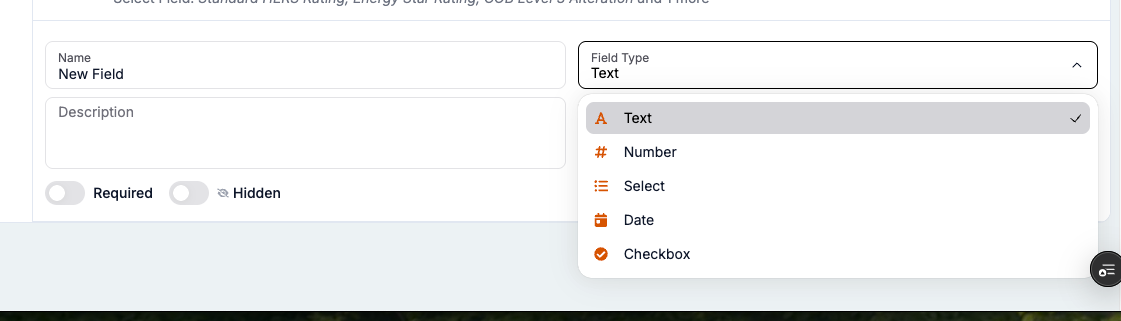
Fill in the following:
Name: What the field is called (e.g., "Gate Code").
Type: Choose from:
Text
Number
Select (dropdown)
Date
Time
Checkbox (true/false)
Description (optional): Help text for your team.
Required During Scheduling: Toggle ON to make the field mandatory.
Hidden from Client: Toggle ON to make internal only.
2. Assign Field to a Service
Go to Services.
Select the service you want to edit.
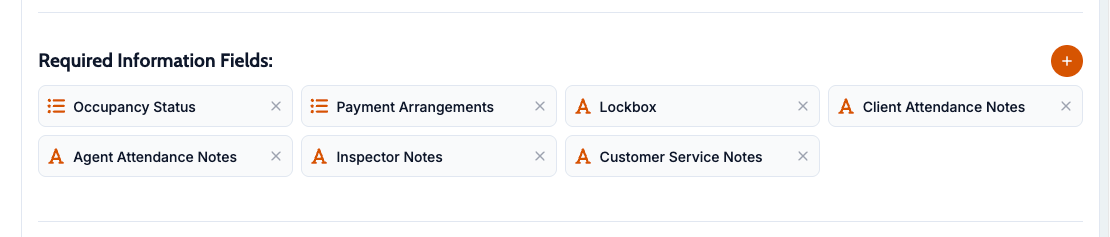
Scroll down to the "Required Info Fields" section.
Add any relevant fields.
Example: You may want to add a "Square Footage" field to a Mold Inspection but not to a Roof Certification.
3. Use It During Scheduling
When creating a job and selecting a service, any required info fields assigned to that service will automatically appear.
Fields marked as required must be completed to proceed.
Bonus: Use Fields to Modify Pricing
You can also use Required Info Fields to influence price.
Go to Settings > Price Modifiers.
Add a new modifier.
Set conditions based on a specific info field (e.g., if "Square Footage > 2500", increase price by $50).
This ensures accurate pricing is automatically calculated based on key inputs.
Best Practices
Keep field names clear and intuitive.
Avoid creating dozens of unused fields.
Test your field visibility using the scheduling form to ensure a smooth workflow.
Regularly audit services to ensure they're assigned the right required fields.
Summary
Required Info Fields let you tailor data collection for each service without overwhelming your schedulers. By displaying only what's needed—and linking fields to pricing—you gain accuracy, efficiency, and control over your scheduling process.
If you need help setting this up, contact our support team or watch our walkthrough video on Required Info Fields.