Scheduling Settings Configuration
Guide to help admins set the online scheduler settings.
Written By Christopher Scott
Last updated 11 months ago
Overview
The Scheduling Settings page is your central hub for controlling how the scheduler behaves for both customers and staff. These settings determine everything from how long quotes are held to what information customers see when booking appointments.
What you can configure:
How long time slots are held during the booking process
What information displays in customer-facing portals
The order of information blocks in your internal scheduler
Booking restrictions and cutoff times
AI-powered addon recommendations
Inspector visibility preferences
Access these settings anytime to adjust your scheduler's behavior as your business needs change. Changes take effect immediately for new bookings.
Setup
Accessing Scheduling Settings
Log in to your admin dashboard
Navigate to /settings/scheduling
The settings form displays with your current configuration
Make changes to any setting
Save setings (a save prompt appears at the bottom of the screen)
Permissions required: You need settings-admin or scheduler-admin access to modify these settings.
Setting Options
Quote Scheduler Settings
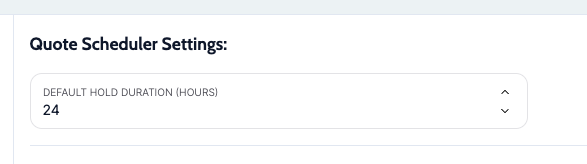
Default Hold Duration (Hours)
What it does: Controls how long a time slot is reserved while a customer completes their booking or reviews a quote. This applies to the online scheduler as well as in the internal scheduler.
How to set it:
Enter a number in hours for these holds to be created on quote creation.
Common settings:
24 hours - Standard for most businesses
48 hours - Gives customers more time to decide
2-4 hours - For high-demand times or busy seasons with limited availability
When to adjust:
Increase if customers frequently lose their time slots while deciding
Decrease if you need to maximize schedule availability
Consider your typical customer decision timeframe
Online Scheduler Settings
These settings are specific to the customer-facing online booking experience.
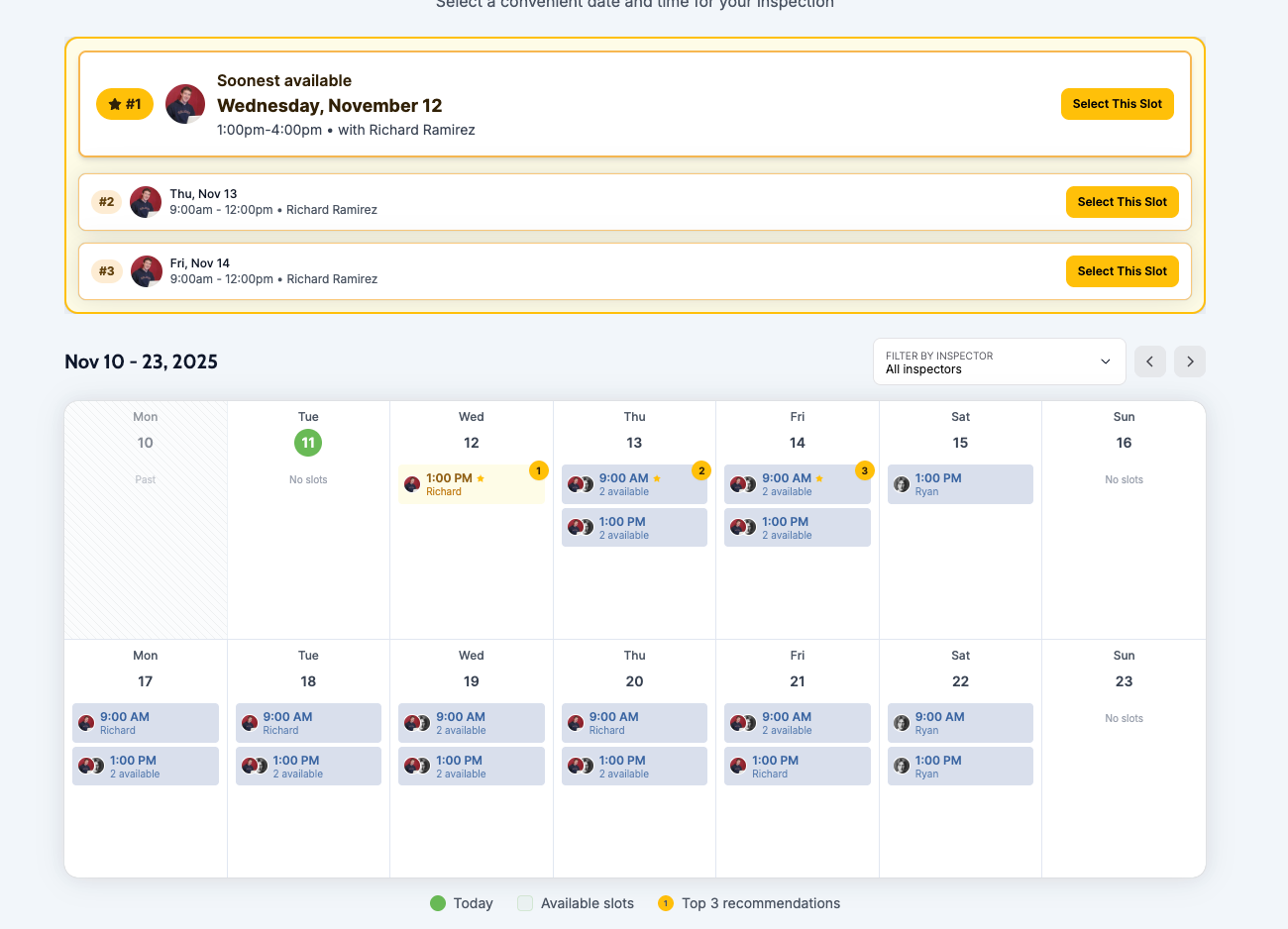
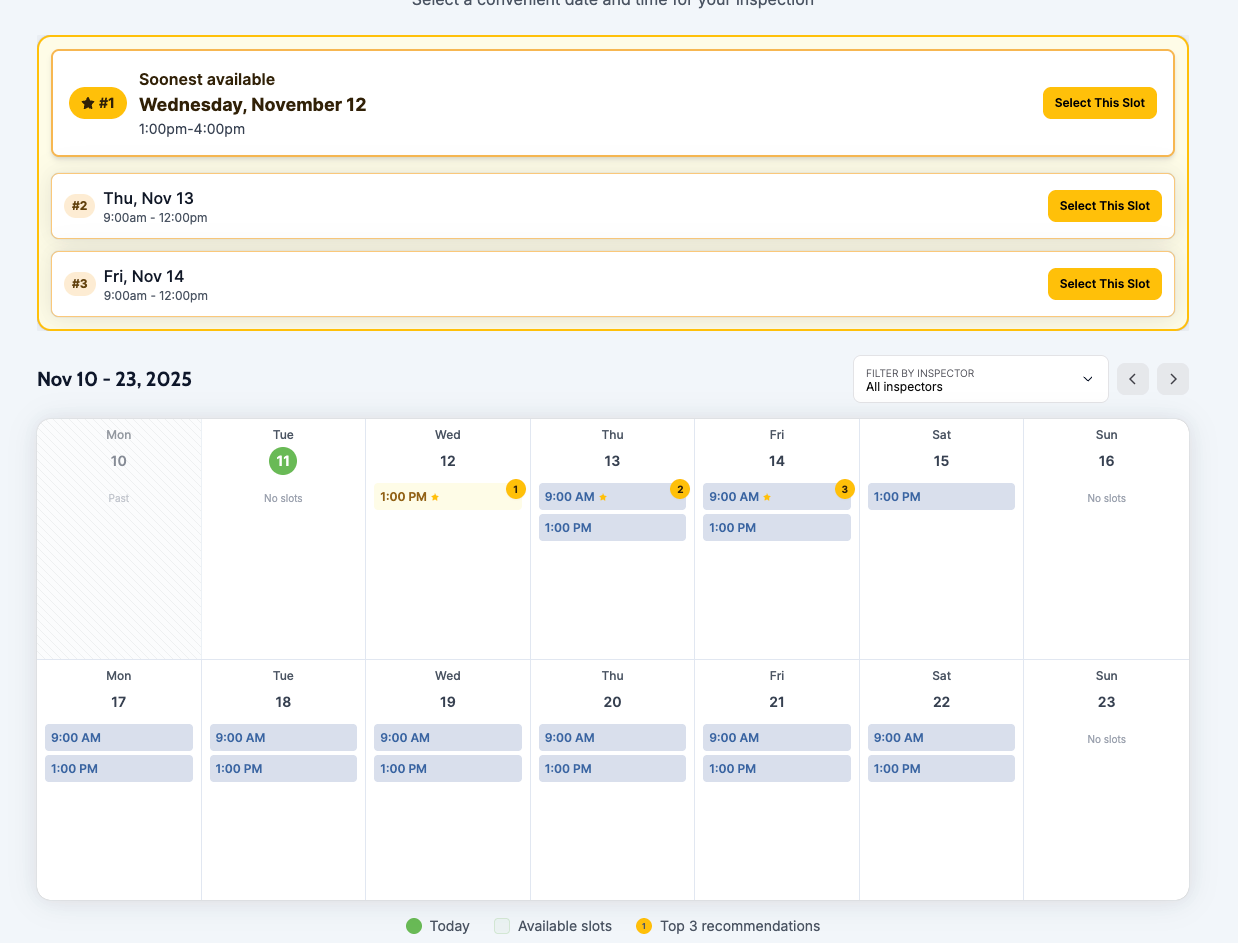
Show Inspector In Online Scheduler
What it does: Displays inspector avatars and names in the calendar view and time slot recommendations.
Toggle on when:
Customers value knowing their inspector in advance
Inspector profiles are complete with photos
You want to highlight your team's expertise
Personal connection improves customer confidence
Toggle off when:
You want the best inspector to be selected
You emphasize company brand over individuals
Inspectors should be abstracted from the user.
View WITH Inspectors:
View WITHOUT inspectors
Next Day Cutoff Time
What it does: Prevents customers from booking next-day appointments after a specified time.
How to set it:
Choose the time using the time picker (12-hour format)
Example: Set to 3:00 PM to prevent next-day bookings after 3 PM
Common settings:
2:00 PM - 4:00 PM - Standard for most businesses
12:00 PM (noon) - For businesses needing more preparation time
6:00 PM - For businesses with evening coverage
Why it matters:
After the cutoff time, customers can only book appointments starting 2+ days out. This ensures your team has adequate time to prepare for access, confirm the job, and handle administrative tasks.
Example:
Cutoff time: 3:00 PM
Current time: 4:00 PM on Tuesday
Customer cannot book for Wednesday
Customer can book for Thursday onwards

Max Sqft Online
What it does: Prevents customers from booking services online if their property exceeds a specified square footage.
How to set it:
Enter maximum square footage (optional field)
Leave empty for no size restrictions
Common thresholds: 5,000 - 10,000 sqft
When to set a limit:
Large properties require custom pricing
Complex properties need manual review
Scheduling requires special inspector assignment
Equipment or time requirements vary significantly
What happens when exceeded:
Customer receives a friendly message
They're directed to contact you directly for custom quote
Prevents pricing errors for oversized properties
Office is immediately notified of a blocker. Draft quote is saved to quote list.
Leave empty when:
Your pricing scales automatically with size
You handle all property sizes the same way
No special considerations for large properties
AI Addon Service Recommendations
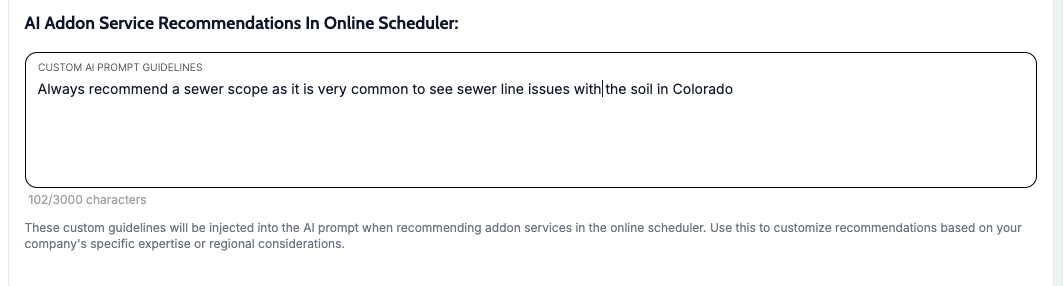
Custom AI Prompt Guidelines
What it does: Adds your company-specific expertise and regional considerations to the AI that recommends addon services to customers.
The system automatically uses best home inspection practice to recommend the correct add-ons. However the prompt can be customized for your business.
How to use it:
If desired, enter guidelines in the text area (up to 3,000 characters)
Test the feature without a prompt to see gaps in recommendations.
Include regional factors (climate, regulations, common issues)
Mention your company's specializations
Example guidelines:
Our company specializes in older homes (pre-1980) in the Denver area.

Regional considerations:
- High altitude affects radon levels - recommend radon testing for basement properties
- Dry climate causes foundation settling - recommend foundation inspection
- Older neighborhoods have aging sewer lines - recommend sewer scope for homes 40+ years old

Company expertise:
- We're certified for commercial properties up to 20,000 sqft
- We have specialized equipment for pool inspections. Recommend pools.
- Same-day mold testing available. The humidity here increases mold risk
What the AI does with this:
Incorporates your guidelines when suggesting addons
Considers property details + your expertise
Provides relevant recommendations to customers
Improves suggestion accuracy over generic recommendations
Tips for effective guidelines:
Focus on when to recommend specific services
Include regional factors customers might not know
Keep it focused on addon recommendations
LESS IS MORE. Overloading the prompt can cause it to be even less specific with its recommendations and you may see worse results.
Service Filter Configuration
What it does: Links to the advanced service filter builder, where you create guided questions for customers.
Navigate to filter setup:
Click the Configure Filter button
Build a tree of questions that guide customers to the right services
Why it's separate:
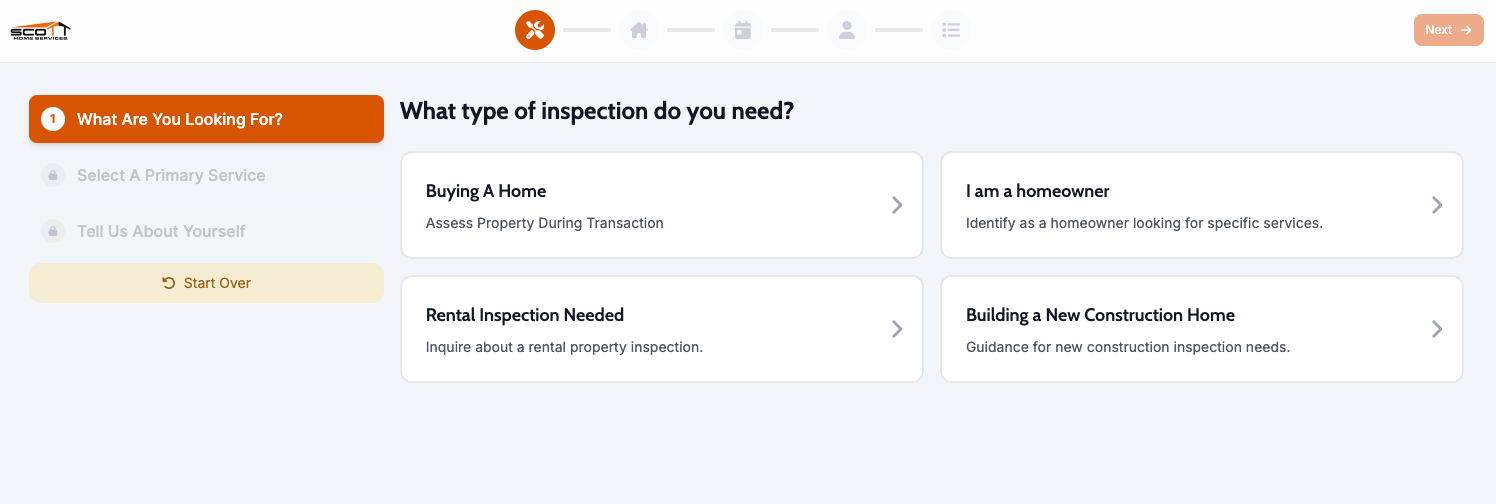
The service filter is complex enough to need its own dedicated page. See the Service Filter Setup guide for complete instructions.
Saving Your Settings
Auto-save behavior:
A save prompt appears at the bottom of the screen when you make changes
Click Save to apply your changes
Click Cancel to discard changes and revert
Changes take effect immediately for new bookings
Settings are live immediately:
Customer-facing changes appear in the online scheduler right away
Staff-facing changes apply to internal tools instantly
No need to restart or reload anything
Best Practices
Start conservative, adjust based on data:
Begin with standard settings (24-hour hold, 3 PM cutoff)
Monitor customer behavior and booking patterns
Adjust settings to optimize for your specific workflow
Test customer-facing changes:
After changing online scheduler settings, generate a test URL
Go through the booking process yourself
Ensure the experience matches your expectations
Document your decisions:
Keep notes on why you chose specific settings
Helps when training new staff
Useful when troubleshooting booking issues
Review settings quarterly:
Business needs change over time
Seasonal adjustments may be beneficial
New features may warrant enabling previously-disabled options
Troubleshooting
Customers losing time slots too quickly
→ Increase the hold duration
Too many next-day booking requests
→ Adjust the cutoff time earlier (e.g., from 4 PM to 2 PM)
Customers confused by service options
→ Enable service descriptions in portal settings
AI recommendations not matching your business
→ Add custom prompt guidelines with specific business practices
Large properties causing pricing issues
→ Set a max sqft limit to catch oversized properties
Internal team struggling with workflow
→ Reorder scheduler blocks to match natural workflow
Related Guides:
Service Filter Setup - Build guided questions for customers
Generating and Embedding the Scheduler - Share your scheduler with customers
Booking an Appointment - Understand the customer experience