Service Filter Setup
Create your step 1 service filter for the online scheduler
Written By Christopher Scott
Last updated 11 months ago
Overview
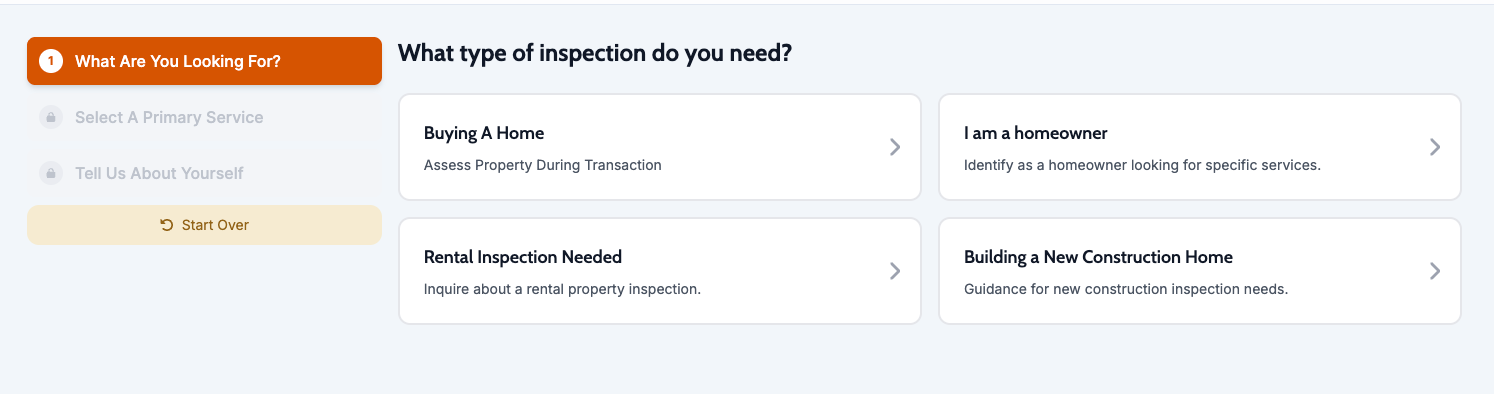
The Service Filter is a guided questionnaire that helps customers find the right services without overwhelming them with choices. Instead of seeing a long list of every service you offer, customers answer a few simple questions that narrow down options relevant to their needs.
These questions can be set for each company to match the specifics of different services offerings.
What the service filter does:
Guides customers through a series of questions (like "What type of property?" or "What are you concerned about?")
Each answer leads to more specific questions or service recommendations
Filters out irrelevant services based on customer responses
Ensures customers are matched with appropriate contact roles for their needs
Benefits:
Reduces customer confusion and decision fatigue
Increases booking completion rates
Matches customers with the right services faster
Qualifies customers into appropriate contact roles automatically without explicitly asking them.
Improves customer experience with personalized guidance
How it works:
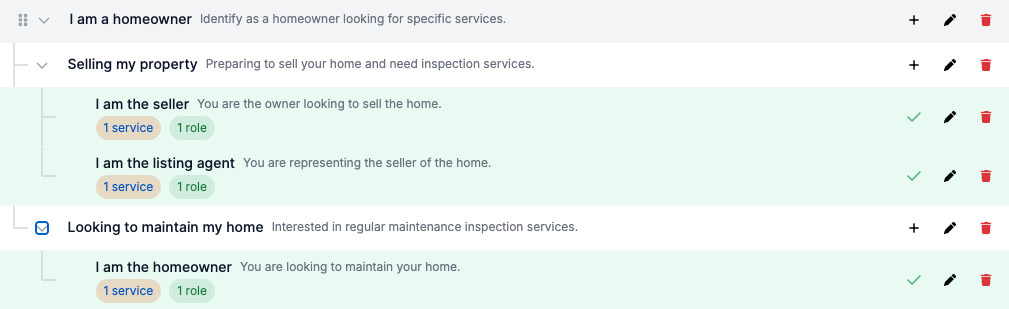
You build a tree of filter options. Each option can either:
Lead to more specific sub-questions (branch node)
End with assigned services and roles (terminal node)
When a customer answers questions, they follow branches until reaching a terminal node, which reveals the services they can book.
Setup
Accessing the Filter Builder
Navigate to /settings/scheduling
Scroll to the Service Filter Configuration section
Click Configure Filter
This opens the filter builder at /settings/scheduling/online-service-filter
Permissions required: You need settings-admin or scheduler-admin access.
Two Ways to Build Your Filter
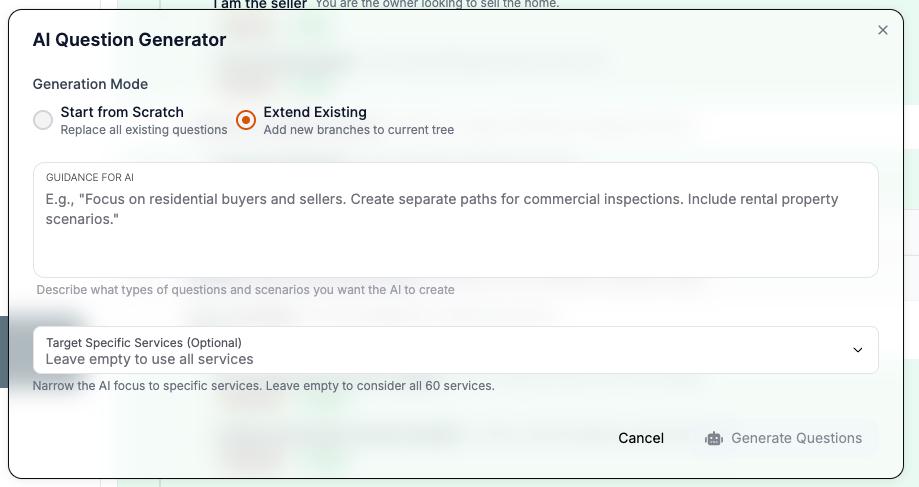
Option 1: AI Generator (Recommended for first-time setup)
Click the AI generation button
AI analyzes your services and creates a complete filter tree
Review and adjust the generated structure
Fastest way to get started
Option 2: Manual Creation
Build your filter tree from scratch
Complete control over questions and structure
Best for unique workflows or specific customer journeys
Usage
Understanding Filter Structure
Filter Tree Hierarchy:
Root Question (e.g., "What type of property?")
├── Residential
│   ├── Single Family Home
│   └── Condo/Townhome
│       └── [Services: Condo Inspection] [Roles: Homeowner, Buyer]
└── Commercial
    └── [Services: Commercial Inspection] [Roles: Business Owner]
Node Types:
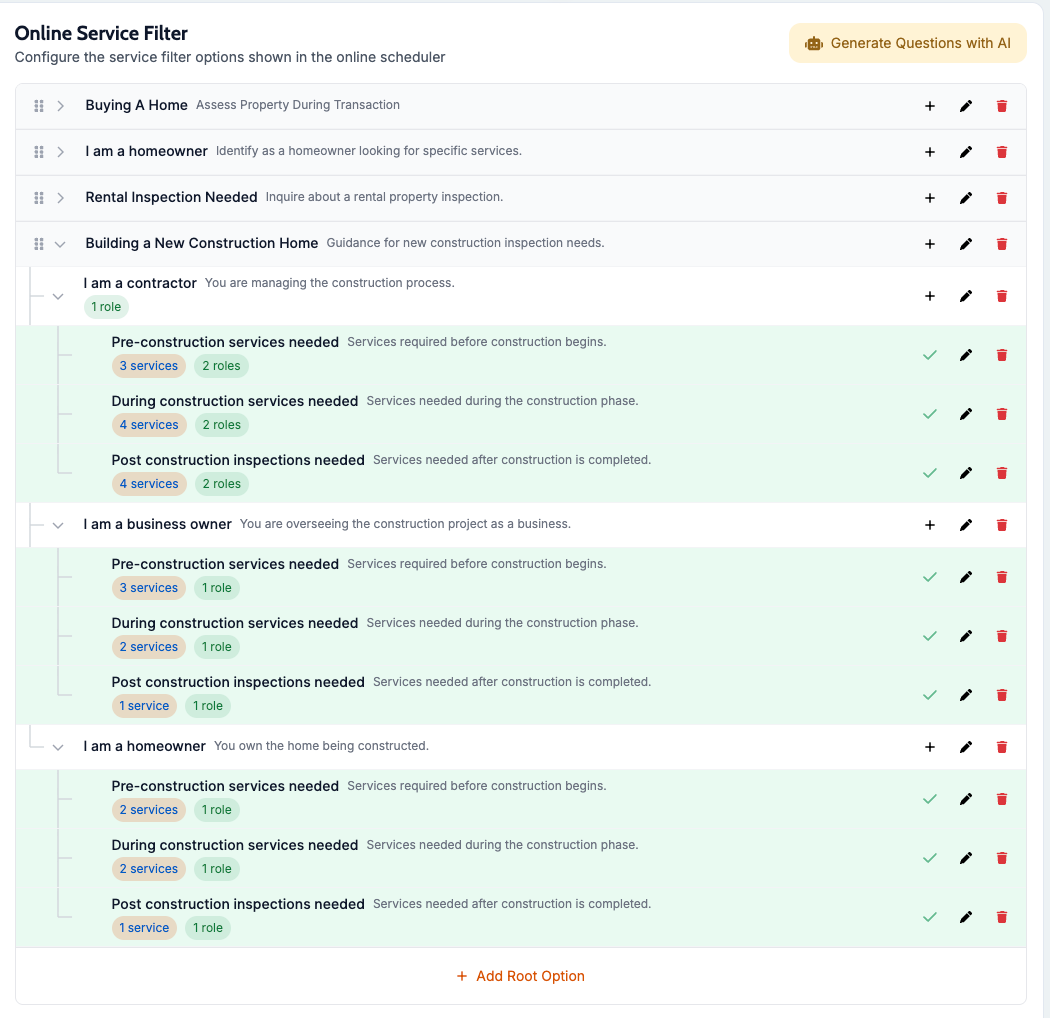
Branch Node (gray/white background)
Has sub-options beneath it
Leads customers to more specific questions
Cannot have services/roles assigned directly
Example: "What type of property?"
Terminal Node (green background with checkmark)
Has both services AND roles assigned
Final destination in the customer journey
Cannot have sub-options
Example: "Single Family Home" with services and roles
Orphaned Node (red/orange background with warning)
Incomplete - missing services or roles or has no terminal descendants
Will not appear to customers until completed
Needs either services+roles OR complete terminal children
Using AI to Generate Your Filter
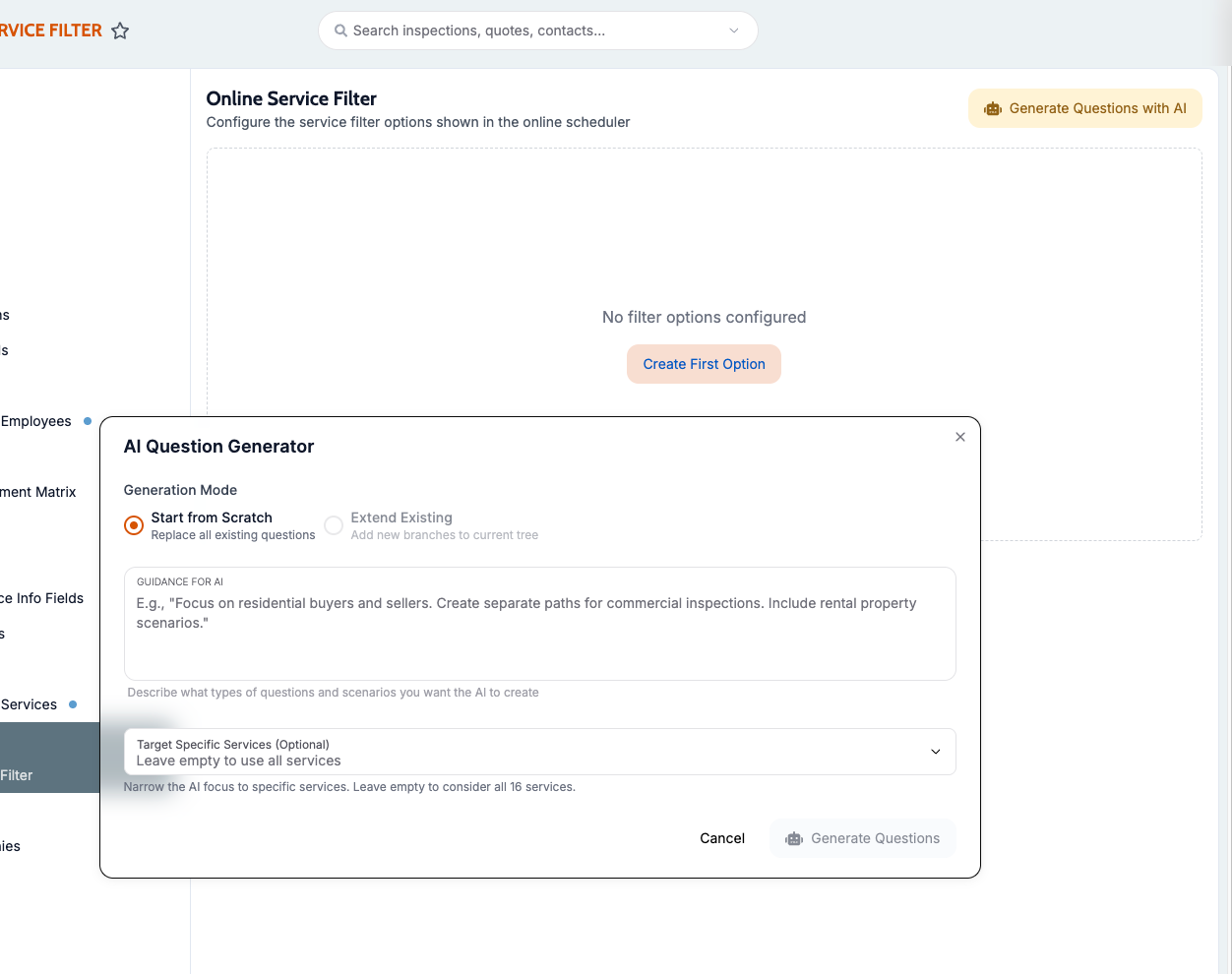
Step 1: Click the AI Generator button
Located at the top right of the filter page
Opens the AI generation modal
Step 2: AI generates the filter
Analyzes your company's services
Creates logical question flow
Assigns services to appropriate endpoints
Assigns contact roles based on service categories
Step 3: Review the generated filter
Expand all branches to see the full structure
Check that service assignments make sense
Verify contact roles are appropriate
Make adjustments as needed
When to use AI generation:
First-time filter setup
You have many services and need a starting point
You want a standard, logical structure
Rebuilding from scratch
Important: AI generation replaces your existing filter. Export or document your current filter if you want to preserve it.
Creating Filter Options Manually
Adding a Root Option
Root options are the first questions customers see.
Click Add Root Option at the bottom of the filter list
Fill in the option details (see below)
Click Save
Example root options:
"What type of property do you have?"
"What service are you interested in?"
"What brings you here today?"
Adding Sub-Options
Sub-options appear after customers select a parent option.
Find the parent option in the tree
Click the + (plus) icon next to it
Fill in the option details
Click Save
Example sub-options:
Under "What type of property?":
Residential
Commercial
Multi-Family
Land/Lot
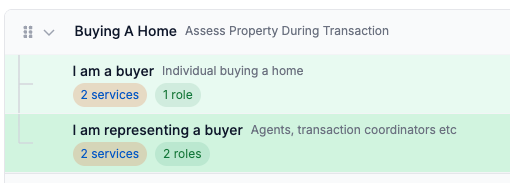
Option Details Form
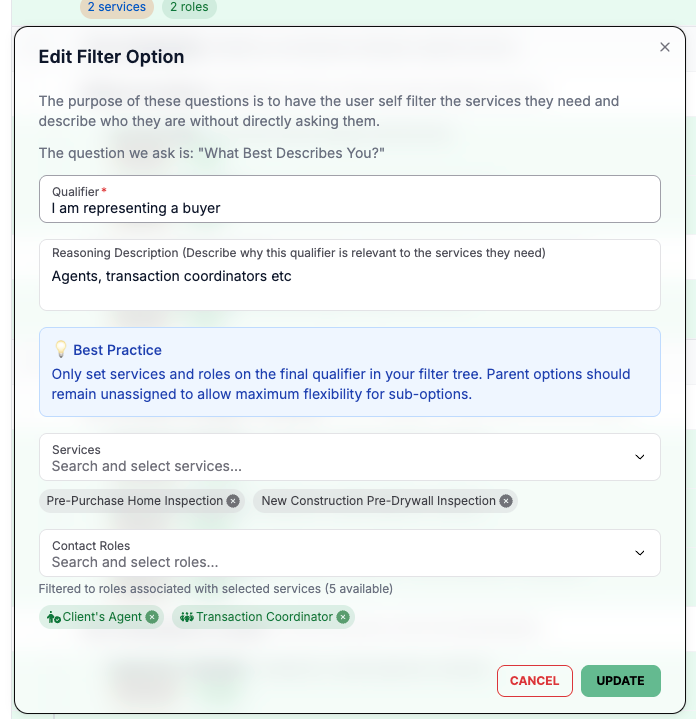
When creating or editing an option, you'll fill in:
Label (required)
The text customers see
Keep it short and clear
Examples: "Residential Property", "Pre-Purchase Inspection", "I need a radon test"
Description (optional)
Additional context shown to customers
Use for clarification when needed
Example: "For properties being bought or sold"
Services (optional)
Select which services apply to this endpoint
Only add services if this is a terminal node
Can select multiple services
Contact Roles (optional)
Select which contact roles apply
Only add roles if this is a terminal node
Can select multiple roles
Examples: Homebuyer, Real Estate Agent, Property Manager
Business Segments (optional)
Tag this option with business segments for reporting
Helps track which customer types use which paths
Understanding Ending Nodes
A terminal node has both services AND roles assigned. This is where the customer's journey ends and they see available services.
Creating a terminal node:
Add or edit an option
Select at least one service
Select at least one role
Save
The option turns green with a checkmark
Cannot add sub-options to terminal nodes
If a role/service is selected in a node prior, then that will set it in future questions.
Why both are required:
Services = What the customer can book
Roles = How the customer should be categorized in your system
Both are needed for a complete booking and to end the branch.
Example terminal node:
Label: "Single Family Home Inspection"
Services: Home Inspection, Radon Test, Sewer Scope
Roles: Homebuyer, Homeowner

Avoiding Orphaned Branches
An orphaned branch is incomplete and won't show to customers.
What makes a branch orphaned:
Has no services or roles assigned
Has sub-options, but none of them reach a terminal node
Dead-end path with no resolution
How to identify orphaned branches:
Red/orange background color
Warning triangle icon
Tooltip explaining the issue
How to fix orphaned branches:
Option 1: Make it terminal
Edit the orphaned option
Add services and roles
Save
It becomes a terminal node (green)
Option 2: Add terminal children
Add sub-options beneath it
Make those sub-options terminal (with services + roles)
The branch becomes valid once it has terminal descendants
Option 3: Delete it
If the branch isn't needed, delete it
Deleting removes it and all its children

Reordering Filter Options
Root-level reordering:
Root options can be dragged to reorder how they appear to customers.
Click and hold the grip icon (⋮⋮) on the left
Drag the option up or down
Release to drop in new position
Order saves automatically
Why order matters:
Customers see options in this order
Put most common paths first
Logical flow improves completion rates
Note: Sub-options cannot be reordered by drag-and-drop. To change their order, delete and recreate them in the desired sequence.
Editing Existing Options
Click the pencil icon next to any option
Modify the details in the modal
Click Save
What you can edit:
Label and description
Services assigned (converts between terminal/branch)
Roles assigned
Business segments
Restrictions:
Cannot make terminal nodes into branches (remove services/roles first)
Cannot add sub-options to terminal nodes (remove services/roles first)
Deleting Filter Options
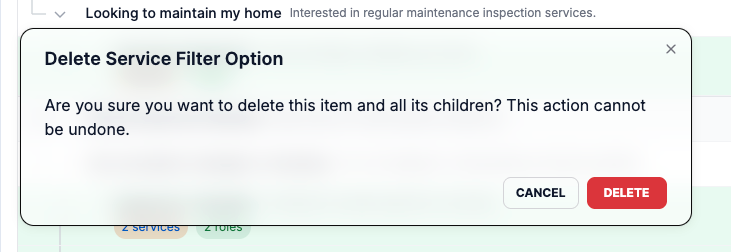
Click the trash icon next to the option
Confirm deletion in the modal
The option and ALL its children are deleted
⚠️ Warning: Deletion is permanent and removes the entire branch. Make sure you want to delete all sub-options too.
When to delete:
Removing outdated service paths
Cleaning up duplicate options
Simplifying an overly complex filter
Starting fresh with AI generation
Expanding and Collapsing the Tree
Expand/Collapse individual branches:
Click the chevron (▶ or ▼) next to any option
Opens to show sub-options
Closes to hide sub-options
Default behavior:
All branches with children start expanded
Makes it easy to see the full structure at a glance
Testing Your Filter
Preview the Customer Experience
Go to /settings/scheduling
Generate a scheduler URL
Open it in a new tab
Go through the service selection as a customer would
No Filter = Search/List Only
What happens without a filter:
If you don't configure a filter (or delete all options), customers will see:
A list of all available services, and
A search box to find services by name
Services that are primary only
When this works well:
You have a small number of services (5-10)
Services are self-explanatory by name
Customers know exactly what they need
When a filter helps:
You have many services (15+)
Services need explanation
Customers may not know what they need
You want to guide customers to appropriate options