RUNNING PAYROLL: New Payroll Report
Written By Christopher Scott
Last updated Over 1 year ago
When you want to run payroll for the period, you navigate to the HR page and select > New Payroll Report.
The payroll run is all live data and calculated in real time. If you see an error, add an adjustment, change a split, etc, you'll see the calculation update. These changes are written directly to the jobs themselves so everything is saved and persists if you come back later.
The data stays fresh so every time you navigate away from the page and reopen the tab or focus back on the window, the calc is re-run. This is helpful for when you go and make an adjustment on a job and come back to see the changes.
One you are done with a payroll report, the report is saved and a payroll history is created. Until then, you can make as many changes as needed and come back at any point.
Payroll Overview
The main page, payroll overview, is a table that gives you an overview of all your employees and their pay breakdown for the week.
Employees that are excluded will not be shown.
This table can be exported once the payroll run is saved.
Changes can only happen on individual employee pages.
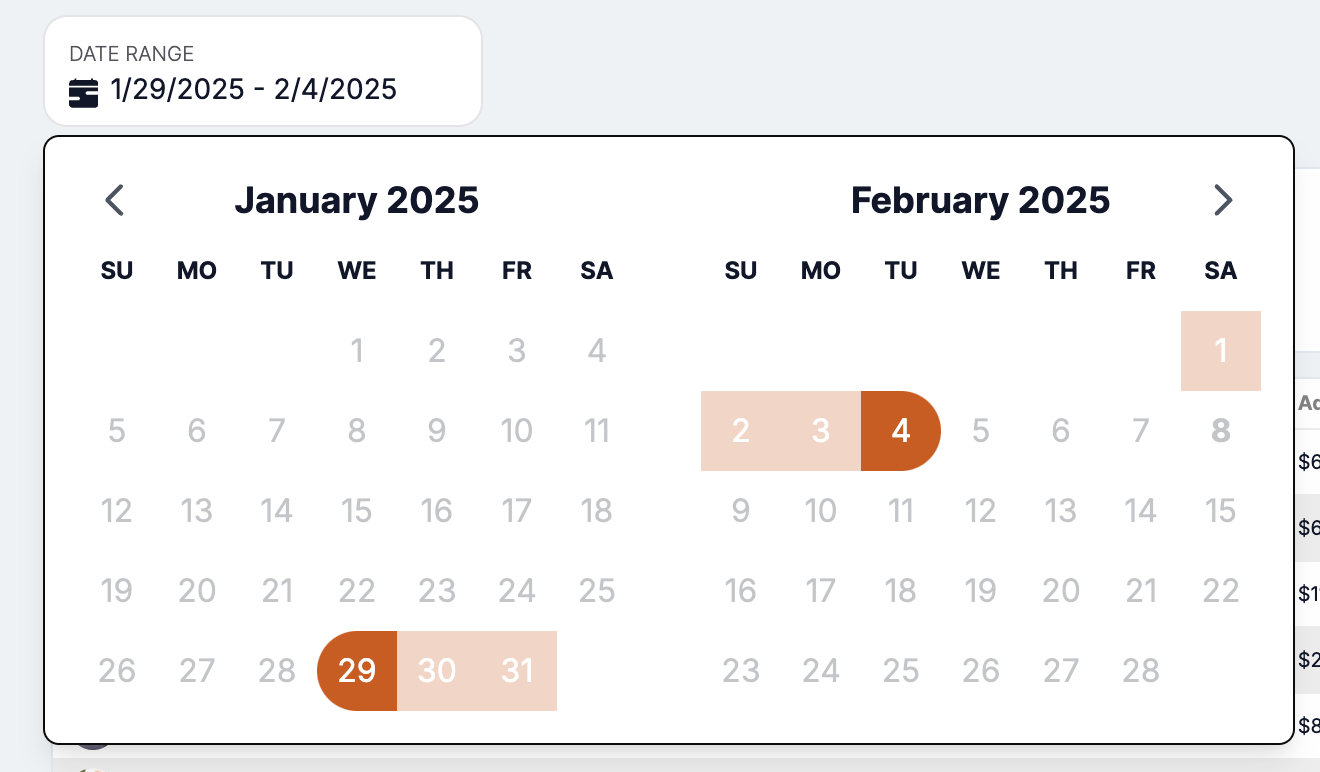
You can set the date range at the top for your pay period. However, it defaults to the pay periods set in your payroll settings.
Employee Breakdown pages
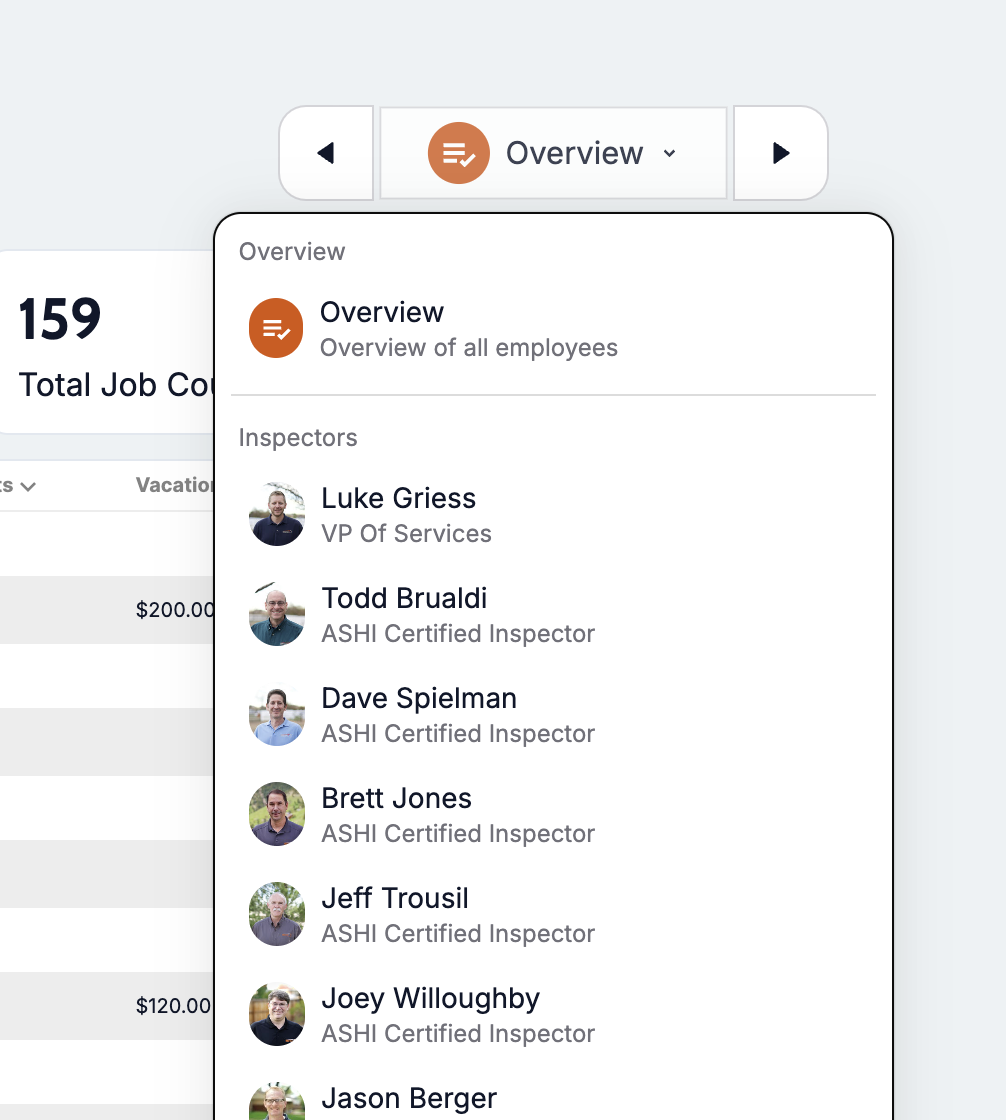
Each employee will have their own breakdown page. As a payroll admin, you can navigate through each employee with the dropdown menu and arrows at the top of the page.
Each inspector page has a Primary Services, Event Services, and Adjustments Table.
Primary services are services where the employee is a primary inspector on a job.
Split can be seen under the View Breakdown button which drops down each job and shows the breakdown per service.
Each job has a split and the inspector can be assigned or unassigned to each service under a job.
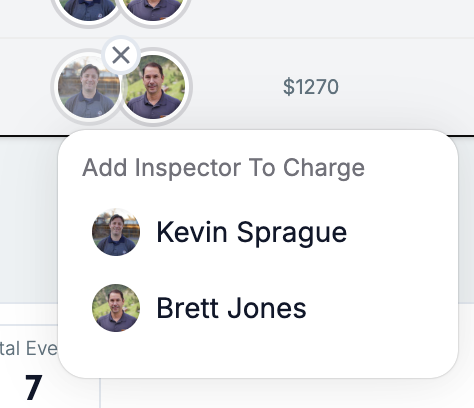
Event services are jobs where the inspector was assigned to an event on a job, and that event was directly linked with a service.
For example, a sewer scope tech doesn’t need to a primary inspector on a job. The event for the scope service can be assigned to them.
Because the sewer scope has an attached event, the job is paid off the event and not the primary. The service won’t show under the primary breakdown list since its handled by the event.
Both events and primary services can be paid by commission or flat rate.
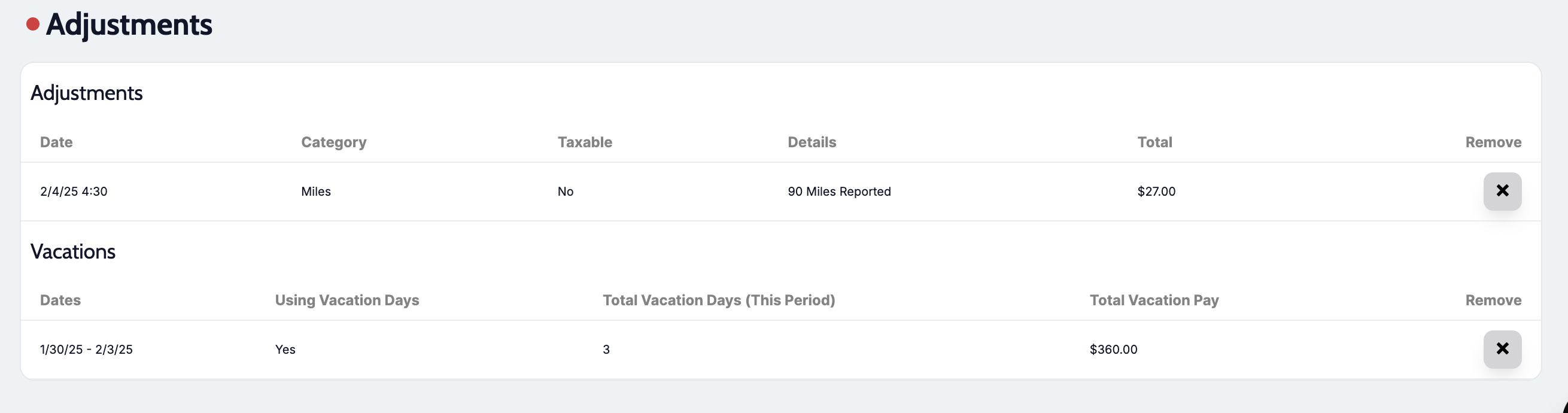
Adjustments will show everything else including miles, bonuses, adjustments (reimbursements, etc) vacation pay, sick pay, etc.
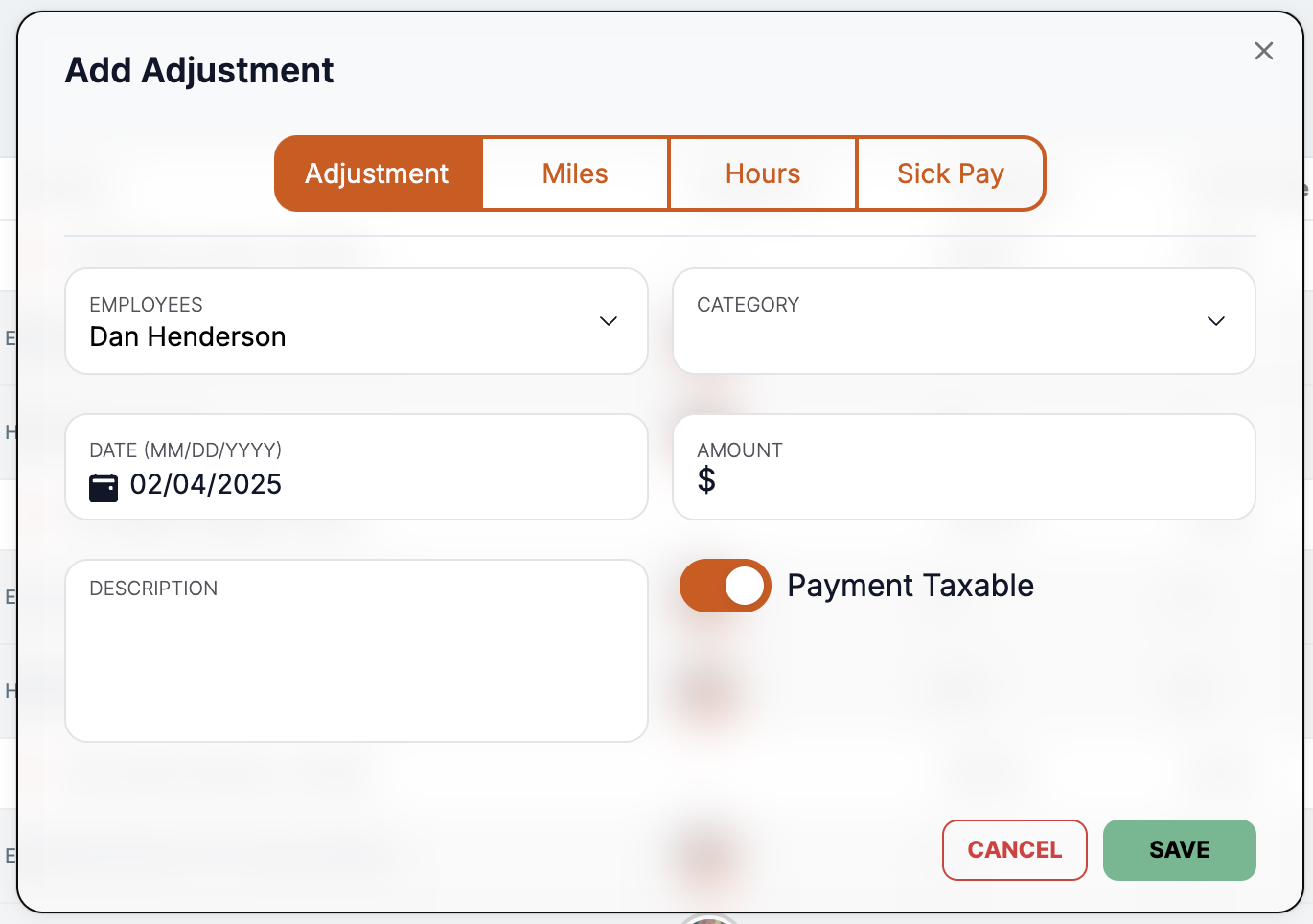
These items either pull from other sources or can be entered manually with Add Adjustments model. This can be found in the bottom right “+“ menu in the payroll report or on the HR Page. Human Resources Overview
Save Payroll Report
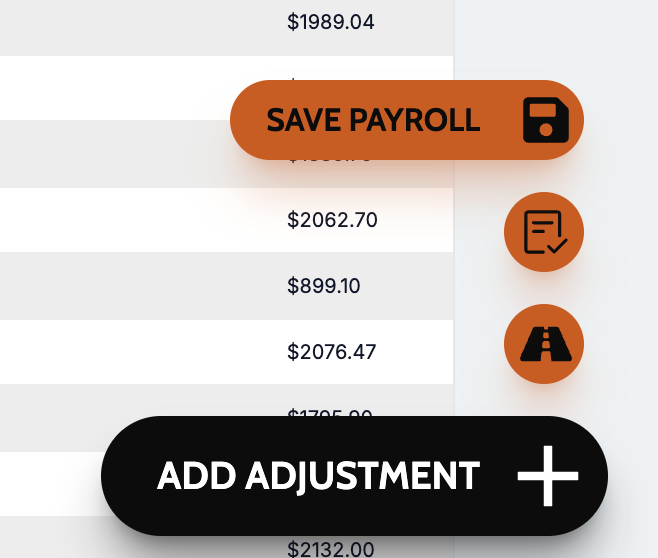
When all checks and edits are complete. You should save a payroll report. This copies all the data and freezes it in time. You can save a report by hovering the floating “+“ menu in the bottom right corner and clicking save.
Once saved, the payroll run will be found under Payroll History and if enabled in Payroll Settings, all employees included in the report will be notified via email.
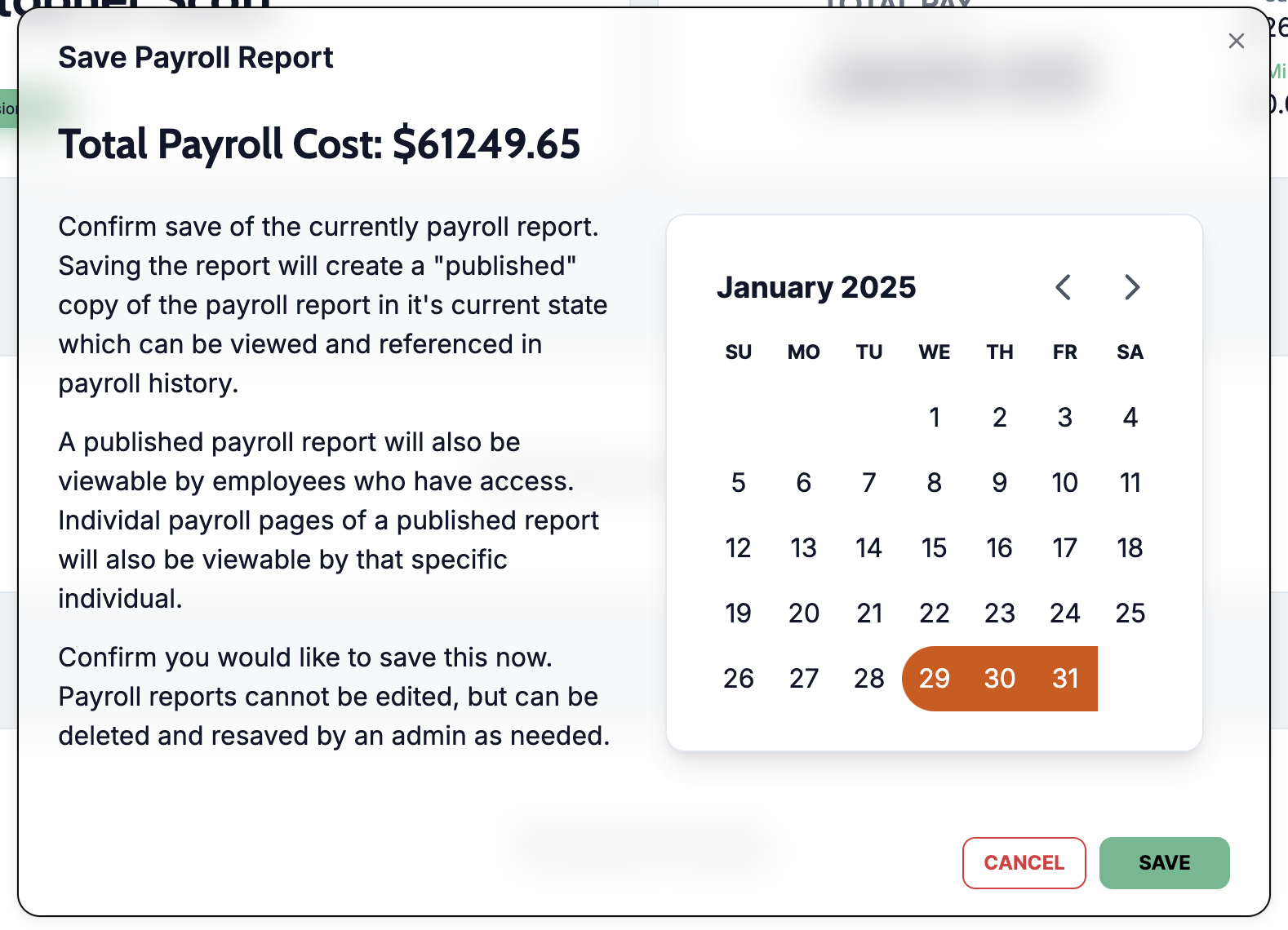
Once a payroll run is saved, you cannot edit it. However, the saved run can be deleted and resaved as needed. This does not alter or change any other data in Attik.
Click save on the pop up model and you’ll be redirected to the now save payroll run.
Get ready to start saving time on payroll!